
SmartOLT brings OLT and ONU management into one centralized web interface, making your everyday network operations easier and more efficient. Once an OLT is connected to SmartOLT, you handle your routine provisioning, monitoring and configuration tasks directly from the dashboard.
This chapter guides you through the recommended setup sequence and links to the configuration guides on smartolt.com.
What you need
| Item | Details |
|---|---|
| A SmartOLT account | You log in at your own address, for example yourcompany.smartolt.com. |
| A supported OLT | Huawei MA56xx and MA58xx series, EA series. ZTE C300, C320, C350, C220 and C600 series. |
| A router in front of the OLT | The setup guides use a MikroTik router. If you use another router, contact SmartOLT support and ask for the list of IP addresses that the router must allow. |
1Prepare the OLT
Before SmartOLT can manage the OLT, the OLT needs a management IP address, a user for SmartOLT and Telnet access. Follow the guide for your OLT:
2Connect the OLT to SmartOLT
You can connect the OLT in one of two ways. We recommend the VPN tunnel, because it encrypts all traffic and gives you the features in the table below that port forwarding does not have.
| VPN tunnel (recommended) | Port forwarding | |
|---|---|---|
| ONU status updates | About every 7 minutes. Within seconds only if you enable SNMP traps. | About every 7 minutes |
| Security | All traffic is encrypted | Telnet and SNMP are open on the public internet |
| Public IP address | Not required | Required |
| TR-069 for ONUs | Available | Not available |
| IPv4 + IPv6 on ONUs | Available through TR-069 | Not available |
| SNMP traps from the OLT | Available | Not available |
When the VPN tunnel is up and you want to manage ONUs over TR-069, follow Configure TR-069.
3Add the OLT
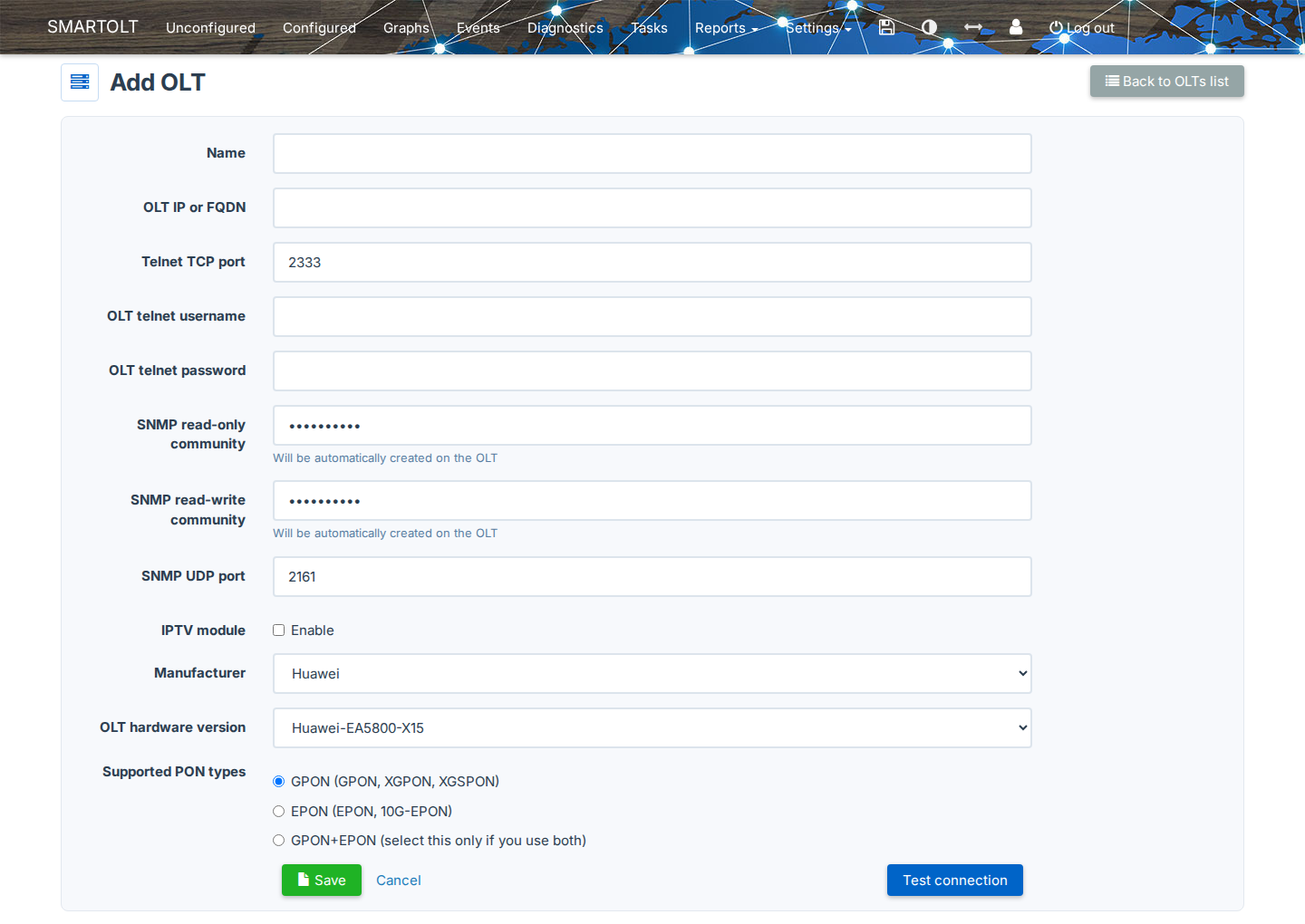
- In SmartOLT, go to Settings → OLTs → Add OLT.
- Fill in the required details.
- If you use the VPN tunnel, enter the private IP address of the OLT. The form then changes the ports to TCP 23 for Telnet and UDP 161 for SNMP, so keep these values. If you use port forwarding, enter the public IP address and the ports that you forward, for example the form defaults 2333 and 2161. For the details of each field, see Add an OLT and check its status.
- Save the OLT.
4Authorize the first ONU
Connect an ONU to a PON port of the OLT, then continue with Authorize an ONU.