
The Configured page lists every ONU that is authorized in SmartOLT. You can search and filter the list to find one ONU or a group of ONUs. The same filters also choose the ONUs for an export and for batch actions.
1Open the list
Go to Configured in the top menu. The filters are at the top, and the list of ONUs is below them.
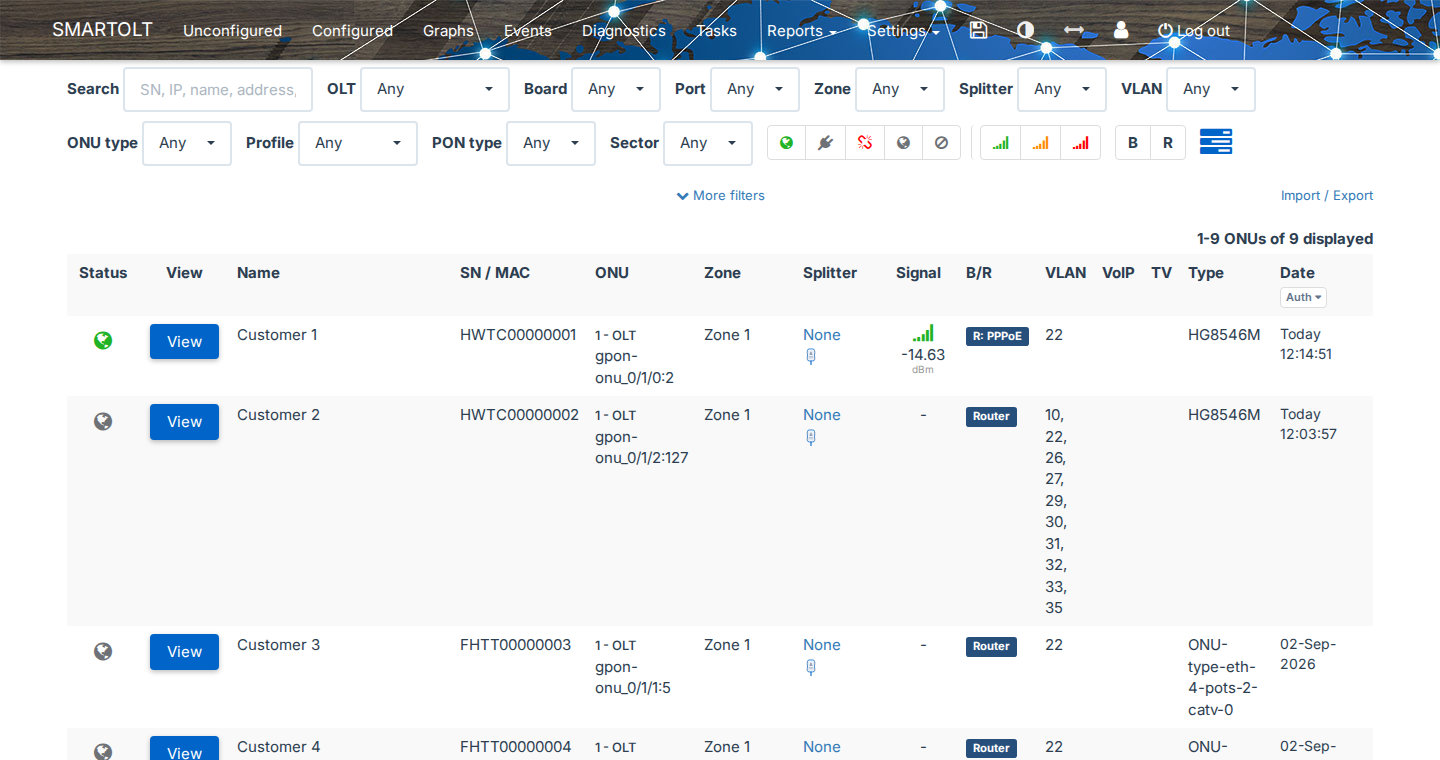
The line above the list shows how many ONUs match, for example 1-9 ONUs of 9 displayed. The list shows 100 ONUs per page, so use the page links above and below the list to see the next pages.
The list shows only the OLTs, PON ports, zones, VLANs and sectors that your SmartOLT user can access. For details, see Users, roles, restriction groups and API keys.
2Search
Type in Search and wait a moment, because the list updates while you type. Search finds an ONU by any of these values:
- SN or MAC address, also a part of it
- name, address or comment, and contact (phone number)
- ONU external ID
- PPPoE username
- IP address of the ONU: management IP, WAN IP or VoIP IP
- a subnet in CIDR format, for example
10.50.61.0/24, or an IP range - the WAN mode, for example
PPPoE
If you type several words, the ONU must contain all of them in the same field. For example, main street finds the address 12 Main Street.
Search also finds the ONUs saved with Add ONU for later authorization. When you use only the other filters, the list hides these ONUs. For details, see Add an ONU for later authorization.
3Filter the list
Select a value in one or more filters, and the list shows only the ONUs that match all the filters.
| Filter | What it selects |
|---|---|
| OLT | One or more OLTs. Select an OLT first, because the Board, Port and VLAN filters get their values from it. |
| Board, Port | The board and the PON port of the ONU. |
| Zone, Splitter | The zone and the splitter of the ONU. |
| VLAN | The ONUs that use this VLAN. If you have more than 5 OLTs, you must select an OLT first; until then, the filter shows Please select an OLT. |
| ONU type | The ONU model. |
| Profile | The custom profile of the ONU. |
| PON type | GPON or EPON. |
| Sector | The sector of the ONU. |
The icons on the right side of the filters work as switches. Click an icon to filter the list, and click it again to clear the filter.
| Icons | What they select |
|---|---|
| Status | Online, Power Fail, Loss of Signal, Offline and Admin Disabled. |
| Signal | Good, Warning and Critical optical signal. |
| B, R | ONUs in Bridging mode or in Routing mode. |
To see the name of an icon, hold the mouse over it. The last icon opens Batch actions, as described in Batch actions.
4Use More filters
Click More filters below the filters to open more fields. To close them, click Less filters.
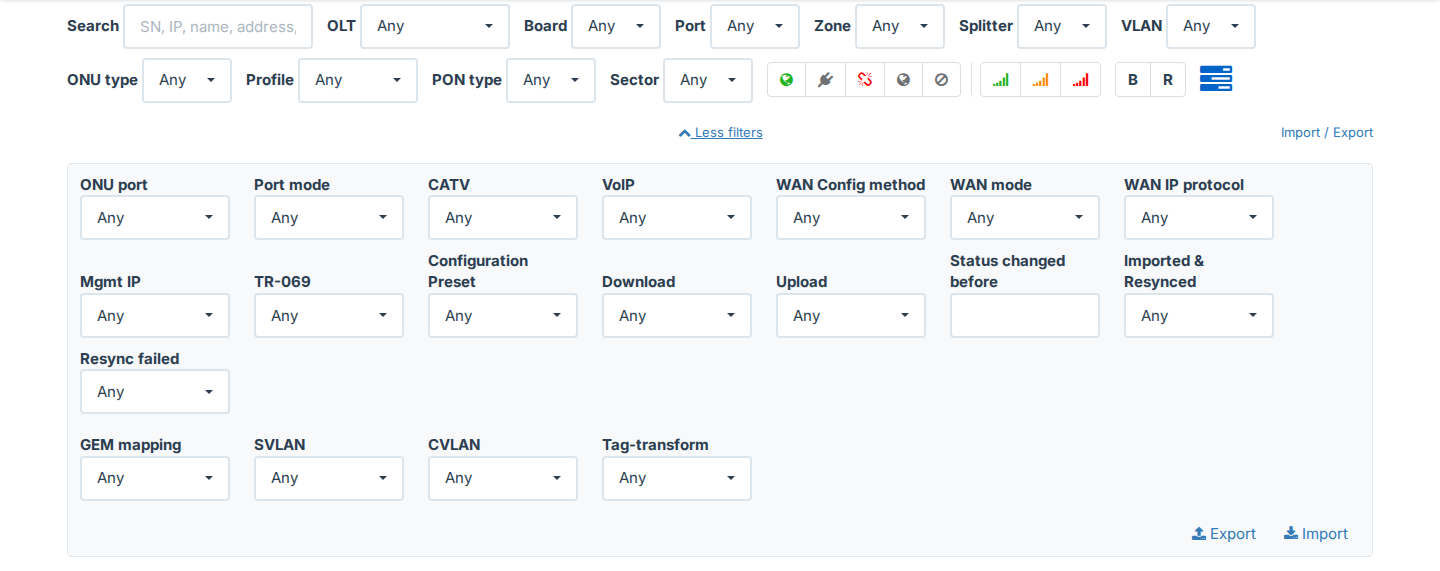
| Filter | What it selects |
|---|---|
| ONU port, Port mode | The ONUs that have an Ethernet port or an SSID in a given mode, for example Access, Trunk or Transparent. |
| CATV, VoIP | The ONUs with CATV or VoIP on or off. |
| WAN Config method | OMCI or TR069. |
| WAN mode | Setup via ONU webpage, DHCP, Static or PPPoE. |
| WAN IP protocol | IPv4 or IPv4/IPv6. |
| Mgmt IP, TR-069 | The management IP mode and the TR-069 profile. |
| Configuration Preset | The ONUs that use an ONU configuration preset. For details, see ONU configuration presets. |
| Download, Upload | The speed profiles. |
| Status changed before | The ONUs whose last status change is on or before the date that you select. Use it together with the Offline status icon to find the ONUs that have been offline for a long time. |
| Imported & Resynced | Only the ONUs imported from the OLT configuration. Yes means that SmartOLT resynced the ONU after the import, and No means that it has not done this yet. |
| Resync failed | Yes shows the ONUs that SmartOLT marks for a new Resync config, for example after a failed resync. |
| GEM mapping, SVLAN, CVLAN, Tag-transform | The VLAN settings of the ONU. Some of these filters appear only for some OLTs. |
5Read the list
| Column | Content |
|---|---|
| Status | The status icon of the ONU, with the same icons as the status filter. |
| View | Opens the ONU page, described in Manage an authorized ONU. |
| Name | The name of the ONU. Click the text to copy it. |
| SN / MAC | The SN of a GPON ONU, or the MAC of an EPON ONU. Click the text to copy it. |
| ONU | The OLT and the position of the ONU, for example gpon-onu_0/1/0:2. |
| Zone, Splitter | The zone and the splitter. To assign a splitter from the list, click None in Splitter. |
| Signal | The ONU Rx signal in dBm. The color of the icon shows whether the signal is good, warning or critical. |
| B/R | Bridge or Router. For routers, the label also shows the WAN mode, for example R: PPPoE. |
| VLAN | The VLANs of the ONU. |
| VoIP, TV | VoIP, CATV and IPTV on the ONU. |
| Type | The ONU type. |
| Date | The authorization date, or the time of the last status change. |
To switch the Date column between the authorization date and the last status change, click Auth in its header. SmartOLT remembers your choice.
To sort the list by a column, click the column header, and click it again to reverse the order.
While the page is open, the list updates the status of the ONUs. If the status of some ONUs changes after the list loads, a message such as 1 status change since the list was loaded appears above the list. To load the list again, click Refresh next to the message.
6Export the list
- Filter the list so that it shows only the ONUs that you want.
- On the right side, below the filters, click Import / Export. The More filters panel opens, with Export and Import at the bottom right of the panel.
- Click Export.
SmartOLT exports all the ONUs that match the filters, from every page of the list. The file is a CSV file, and your browser downloads it when the export is ready. For a large list this can take some time, so hold the mouse over Export to see the progress in percent.
If the export fails, SmartOLT shows Report generation failed, please contact support.
Import on the same panel opens Import ONUs location details. It updates only the location fields of existing ONUs from a CSV file, and the window lists the columns that the file must have. For other exports and imports, see the Reports menu.