
Sectors divide your network, for example into branches, resellers, regions or virtual ISP providers. You put splitters and ONUs in sectors, and then you limit a user to one or more sectors with a restriction group. After that, the user sees only the splitters and ONUs of these sectors, even when they share a zone or a PON port with other sectors.
A sector alone changes nothing for the users, because it takes effect only when a restriction group uses it.
Settings → Sectors appears only when sector restrictions are enabled for your account. If you open the page while they are disabled, SmartOLT shows Sector restrictions are disabled. To enable sector restrictions, contact SmartOLT support.
1Plan the order of the work
Do the steps in this order. A restricted user does not see splitters and ONUs that have no sector, so if you restrict a user too early, the user sees empty lists.
- Create the sectors.
- Put the splitters in sectors. The ONUs get their sector from their splitter.
- Check that no splitter or ONU is left without a sector.
- Restrict the users.
2Open the list
Go to Settings → Sectors.
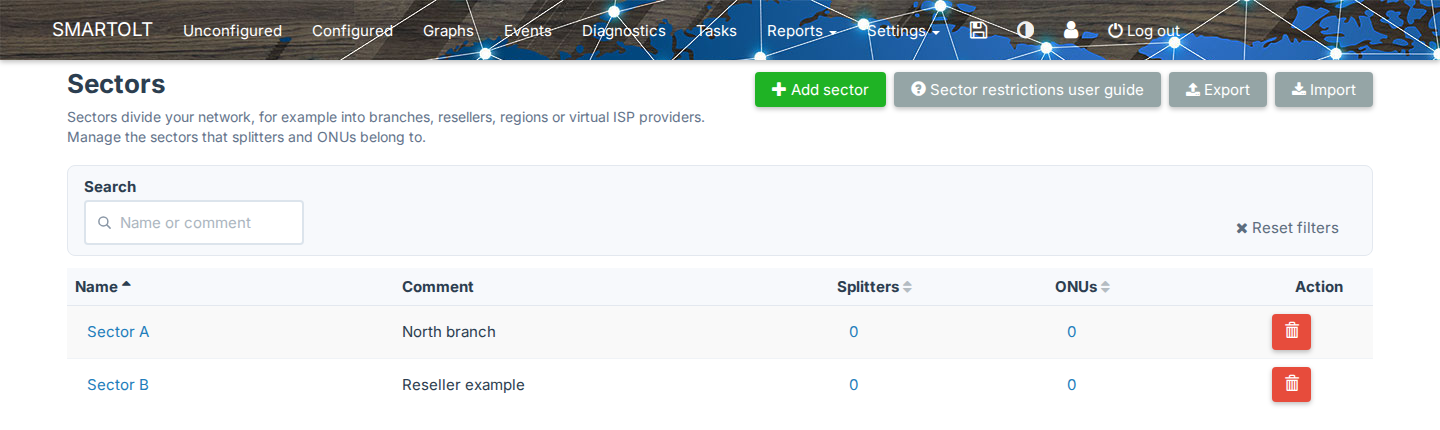
| Column | Meaning |
|---|---|
| Name | The sector name. Click it to edit the sector. |
| Comment | Optional text. |
| Splitters | The number of splitters in the sector. Click it to open the Splitters list filtered by the sector. |
| ONUs | The number of ONUs in the sector. Click it to open the Configured list filtered by the sector. |
Search finds sectors by name or comment, and Sector restrictions user guide opens a full guide to sectors inside SmartOLT.
The Sectors page itself is not restricted. So every user who can open it sees all sectors and their counts.
3Add a sector
Click Add sector.
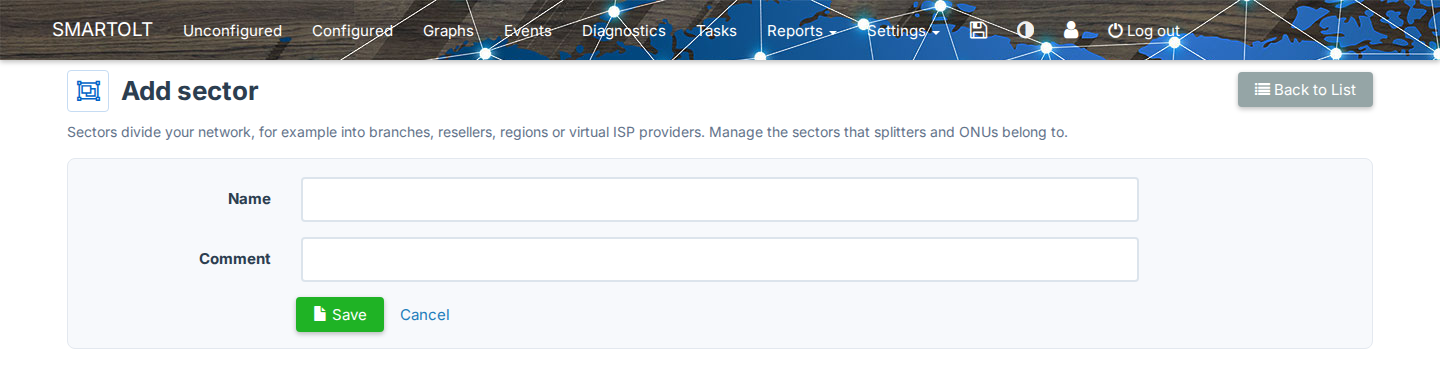
| Field | What to set |
|---|---|
| Name | Required and unique. It can contain letters, digits, spaces, _, . and -. |
| Comment | Optional. Up to 500 characters. |
Click Save, and SmartOLT shows Sector was added.
If the name has other characters, SmartOLT shows The Name field can contain only alphanumeric characters, spaces, underscore, dot and the dash (-) character.
Import sectors from a CSV file
- Click Import.
- Click Sectors_template.csv to download the template, which has the columns Name and Comment.
- Fill in one sector on each line.
- Select the file in Sectors file and click Import sectors.
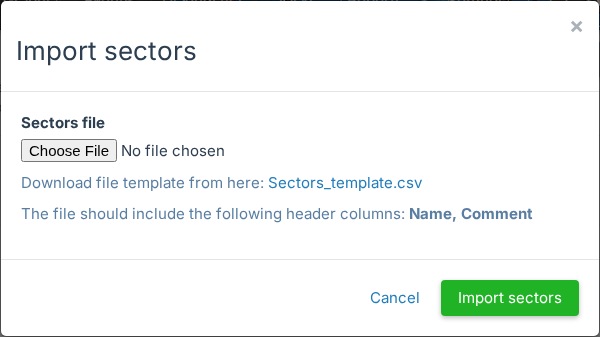
SmartOLT skips the names that already exist. If some names have characters that are not allowed, SmartOLT shows Sectors from the file were imported, except for the following problems: followed by those names.
Export downloads the sector list as a CSV file.
4Put splitters and ONUs in sectors
A splitter can be in several sectors, but an ONU is in one sector only.
Set the sectors on the splitters. When a splitter has exactly one sector, all its ONUs move into that sector. See Assign sectors on the Splitters page.
An ONU can also get its sector in these ways:
| Where | How |
|---|---|
| Authorization form | The Sector field under the splitter. When the splitter has exactly one sector, SmartOLT fills in the field from the splitter. |
| Authorization preset | The preset can set a sector. See Authorization presets and auto-authorization. |
| CSV or OLT import | When the splitter has exactly one sector, SmartOLT uses that sector. |
| ONU page | Click the sector or the splitter, and change the sector in Update location details. |
5Restrict a user to sectors
Go to Settings → General → Users and create or edit a restriction group. Select the sectors in the Sectors field, and then add the users to the group. See Restriction groups.
| Sectors in the restriction group | What the users see |
|---|---|
| None selected | Everything, including splitters and ONUs without a sector. |
| One or more selected | Only the splitters and ONUs of these sectors, and never the ones without a sector. |
If you select every sector, the result is not the same as when you select none. With every sector selected, the users still do not see splitters and ONUs without a sector.
The restriction applies to the ONU lists, the splitters, the map, the graphs, the diagnostics, the reports, the exports and the API. It takes effect at the next click, so the users do not need to log in again.
Restrict one user first and check what this user sees. If you need to undo the restriction, clear the sectors in the restriction group.
Two places are not filtered by sector:
- Unconfigured shows every new ONU on the OLT, because a new ONU does not have a sector yet.
- PON outage alerts in Events and in Telegram count every ONU on the PON port.
6Edit or delete a sector
To change the name or the comment of a sector, click its name. History on the edit page shows the earlier changes.
To delete a sector, click the delete icon on its row. You can delete a sector only when it is empty, so if it is not empty, SmartOLT shows one of these messages:
| Message | What to do |
|---|---|
| Remove the existing splitters from this sector before you delete it. | First remove the splitters from the sector. |
| Remove the existing ONUs from this sector before you delete it. | First move the ONUs to another sector. |
| This sector is the only sector in one or more restriction groups. ... | First change the restriction groups. Without the sector, these groups have no sector restriction, so their users see everything. |
If the sector is one of several sectors in a restriction group, you can delete it, and SmartOLT removes it from the group. After that, the users of that group see less.
Authorization presets that use the sector do not block the delete, but after the delete, these presets no longer set a sector.