
With TR-069, SmartOLT configures the ONUs through its own TR-069 server (ACS). The ONUs reach the ACS through a VPN tunnel between your MikroTik and SmartOLT. This guide shows the setup that you do one time, and then how to enable TR-069 on one ONU.
The examples in this guide use these values:
| Value | Example |
|---|---|
| Tunnel subnet | 10.69.69.0/24 |
| ACS address | http://10.69.69.1:14501 |
| Management VLAN | 12, with 10.50.61.1/24 on the MikroTik |
| ONU management IP | 10.50.61.123 |
| Customer VLAN | 22 |
1Create the VPN tunnel
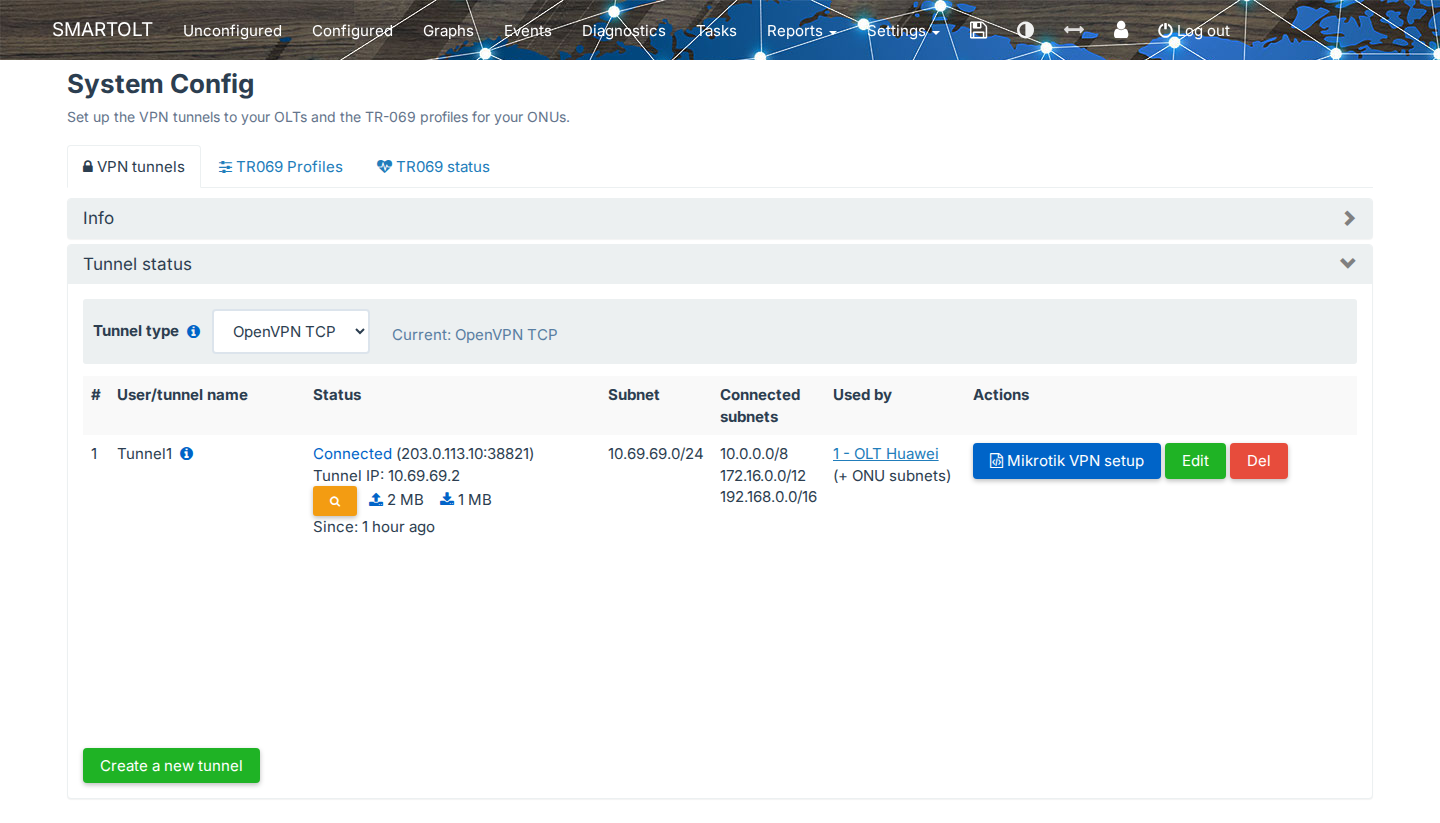
Go to Settings → VPN & TR069, where the VPN tunnels tab lists your tunnels. Click Create a new tunnel. You can keep the default settings, or you can enter your own private subnets.
| Column | Content |
|---|---|
| Status | Shows Connected when the tunnel is up. Tunnel IP is the address of your MikroTik inside the tunnel. |
| Subnet | The private network inside the VPN tunnel, between SmartOLT and your MikroTik, for example 10.69.69.0/24. SmartOLT has one address in this network and your MikroTik has another. SmartOLT sets this network for you, so you do not need to change it. |
| Connected subnets | The networks that SmartOLT reaches through the tunnel. You set them in Tunnel routes when you edit the tunnel. |
| Used by | The OLTs that use the tunnel. |
2Apply the tunnel configuration on the MikroTik
On the row of the tunnel, click Mikrotik VPN setup. The Mikrotik VPN setup window shows a VPN setup script for RouterOS.
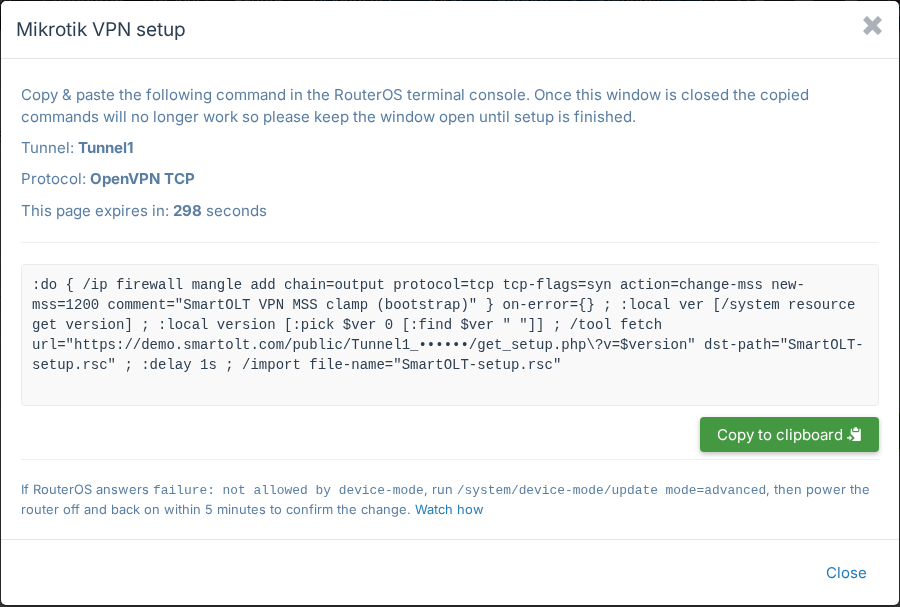
- Click Copy to clipboard.
- On the MikroTik, open New Terminal and paste the script.
- Keep the window open until the setup finishes, because the VPN setup script is valid only for a short time, while the SmartOLT setup window is open.
Then reload the VPN tunnels page a few times. When the tunnel is up, Status shows Connected.
If RouterOS answers failure: not allowed by device-mode, follow the steps below.
If RouterOS answers "failure: not allowed by device-mode"
Newer MikroTik devices start in a restricted device-mode. In this mode, RouterOS blocks some commands that the VPN setup script needs, for example /tool fetch. So the terminal shows failure: not allowed by device-mode and RouterOS does not create the tunnel.
-
In the MikroTik terminal, run:
/system/device-mode/update mode=advanced -
Within 5 minutes, disconnect the router from power and connect it again. RouterOS applies the new mode only after this real power cycle.
-
Check the mode:
/system/device-mode/printThe output must show
mode: advanced. -
In SmartOLT, open Mikrotik VPN setup again, copy the script and paste it into the MikroTik terminal. Do this while the window is open, because the VPN setup script is valid only for a short time.
A restart from the terminal or from Winbox does not confirm the change. You must disconnect the power and connect it again.
3Add the OLT
Add the OLT with its private IP address. When you enter a private IP, the form changes the ports to TCP 23 for Telnet and UDP 161 for SNMP, so keep these values. Because SmartOLT reaches the OLT through the tunnel, you do not need port forwarding. For the steps, see Add the OLT.
4Check the TR069 profile
Go to Settings → VPN & TR069 and open the TR069 Profiles tab. Check that the SmartOLT profile exists and that the OLTs column lists your OLT.
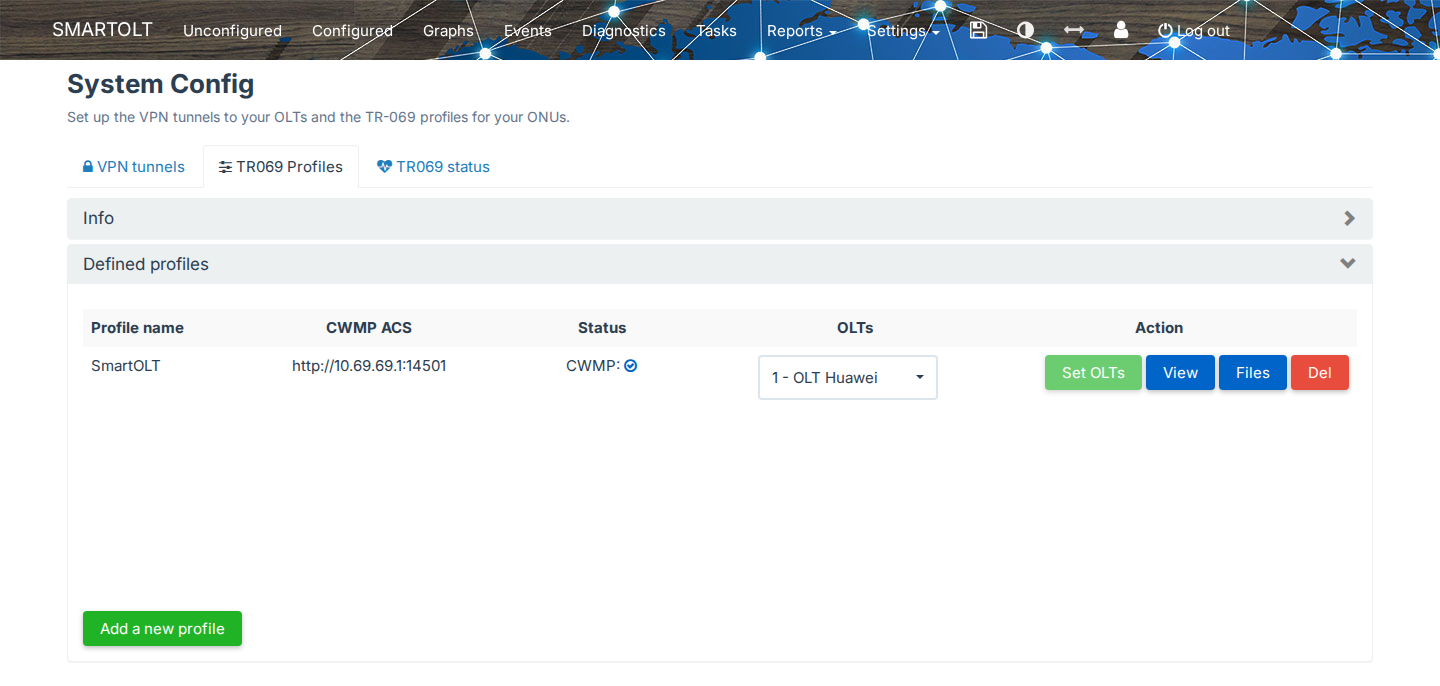
CWMP ACS shows the ACS address that the ONUs use, for example http://10.69.69.1:14501. If your OLT is missing from the profile, select it in the OLTs list and click Set OLTs.
5Add the management VLAN
The ONUs reach the ACS through a management VLAN. To add it, go to Settings → OLTs, click View on the OLT and open the VLANs tab.
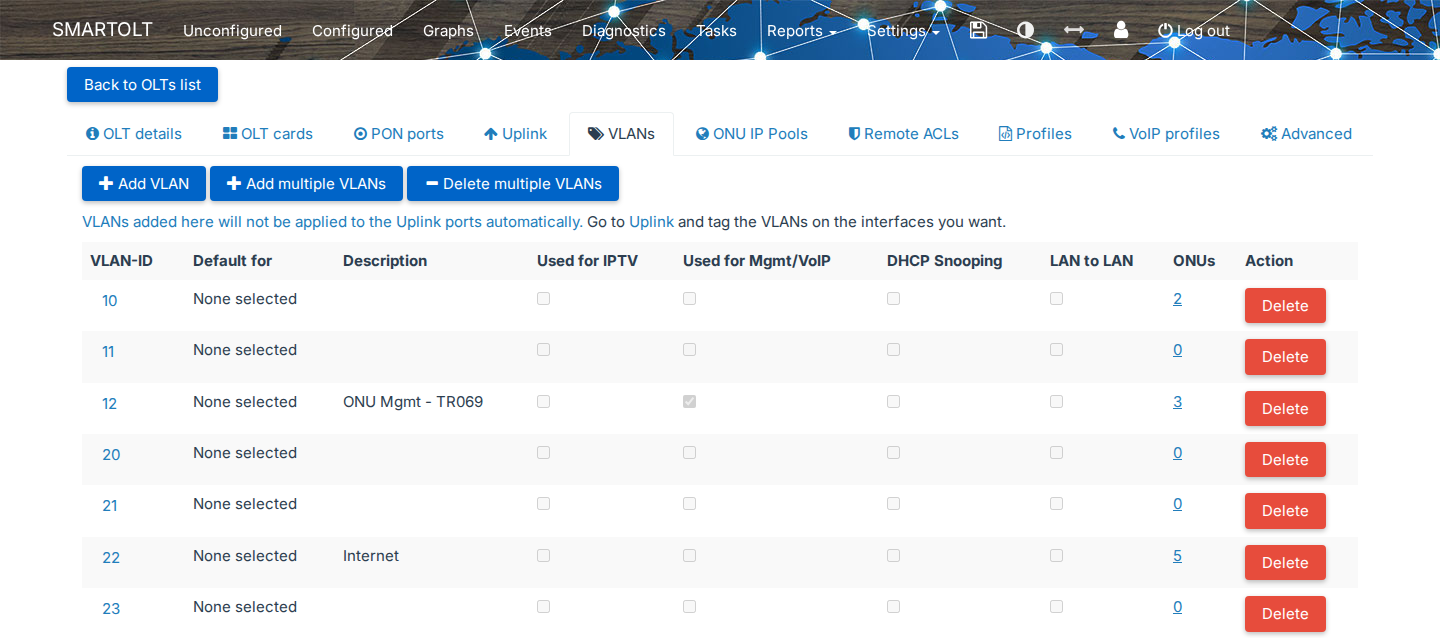
Click Add VLAN, enter the VLAN-ID, for example 12, and select Management/VoIP VLAN. The VLAN list then shows the VLAN as Used for Mgmt/VoIP.
SmartOLT does not add the VLAN to the uplink ports. You must open the Uplink tab and tag VLAN 12 on the uplink port that goes to the MikroTik.
After that, create VLAN 12 on the MikroTik and give it an IP address. This address is the gateway for the ONU management.
Router setup (example: OLT connected directly to a MikroTik)
In this example, the OLT uplink connects to ether4 of a MikroTik, and the same MikroTik runs the SmartOLT VPN tunnel. On ether4, create two VLAN interfaces:
| VLAN | Use | Address |
|---|---|---|
| 12 | ONU management and TR-069. | 10.50.61.1/24. This is the gateway that you enter in the management IP pool in step 6. The ONUs get addresses such as 10.50.61.123. |
| 22 | Customer internet. | Runs the PPPoE server or the DHCP server for the customers. |

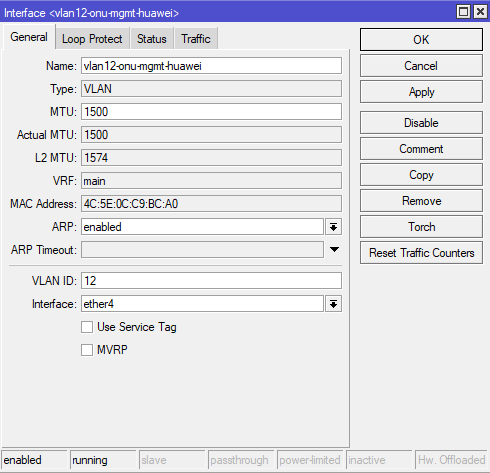
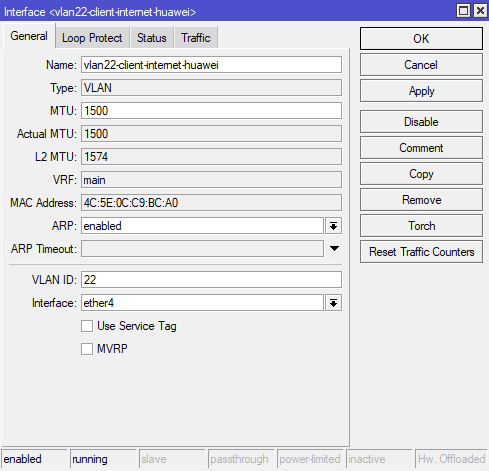
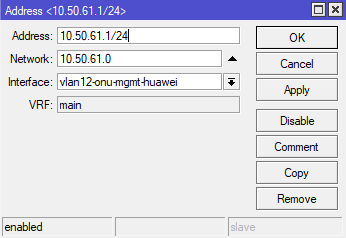
These RouterOS commands create the same setup:
/interface vlan add name=vlan12-onu-mgmt interface=ether4 vlan-id=12
/interface vlan add name=vlan22-internet interface=ether4 vlan-id=22
/ip address add address=10.50.61.1/24 interface=vlan12-onu-mgmt
The interface names are only examples. The screenshots use vlan12-onu-mgmt-huawei and vlan22-client-internet-huawei.
After this, you add the customer service to VLAN 22, a PPPoE server or a DHCP server, as in any MikroTik setup.
SmartOLT must reach the management subnet through the tunnel, so check these two points:
- The Tunnel routes of the tunnel in Settings → VPN & TR069 must include the management subnet. For example,
10.0.0.0/8includes10.50.61.0/24. - The ONU must reach the ACS address of the TR-069 profile through the tunnel, for example
http://10.69.69.1:14501.
The MikroTik must not NAT the traffic between the tunnel and the management VLAN. The MikroTik configuration that SmartOLT generates already excludes the tunnel from NAT.
You can have two SmartOLT tunnels on the same network, for example when you have two SmartOLT accounts. In this case both tunnels use the same tunnel subnet, so you must use policy routing to send the ONU management traffic of each account to its own tunnel.
6Define the ONU management IP pool
SmartOLT gives the ONUs static management IPs from a pool. To create the pool, open the ONU IP Pools tab on the OLT page, then ONU MGMT IPs.
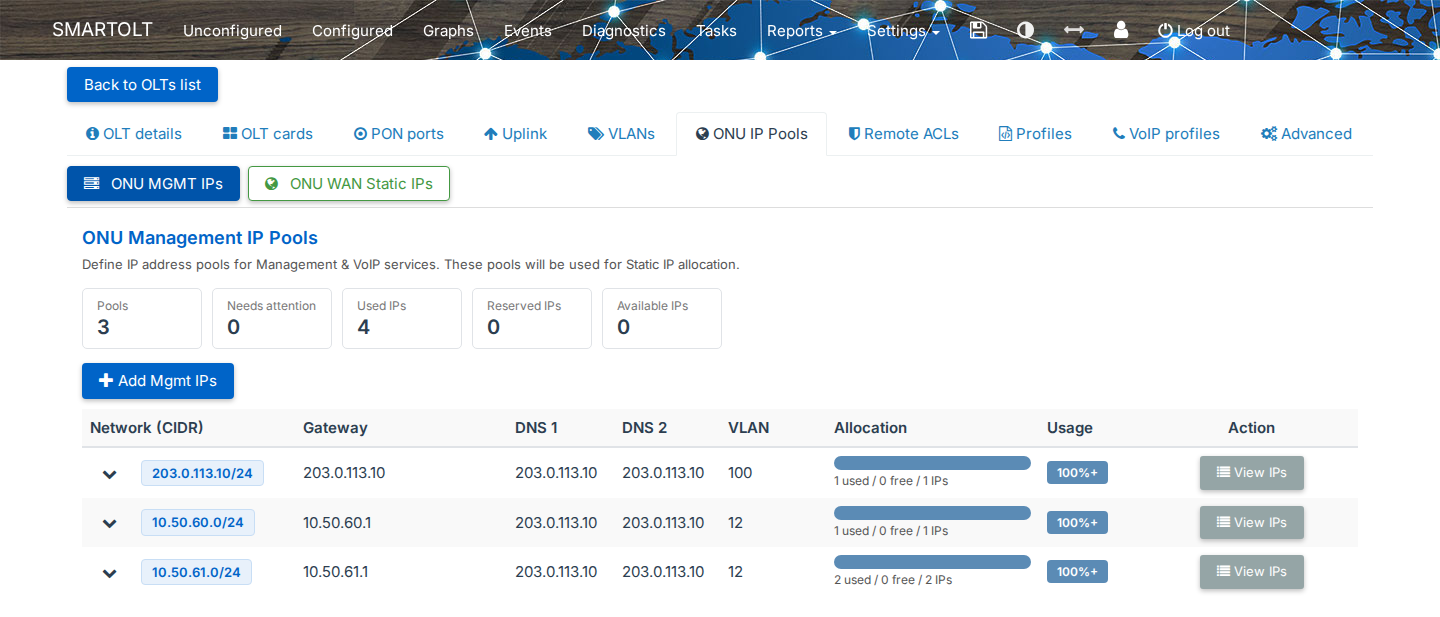
Click Add Mgmt IPs and define the pool, for example 10.50.61.0/24 with the gateway 10.50.61.1 on VLAN 12. The table shows each pool with its Gateway, DNS 1, DNS 2, VLAN and the number of used and free addresses.
A DHCP server on the MikroTik can also assign the management IPs. However, some ONUs need a static management IP for TR-069 to work.
7Enable TR-069 on the ONU
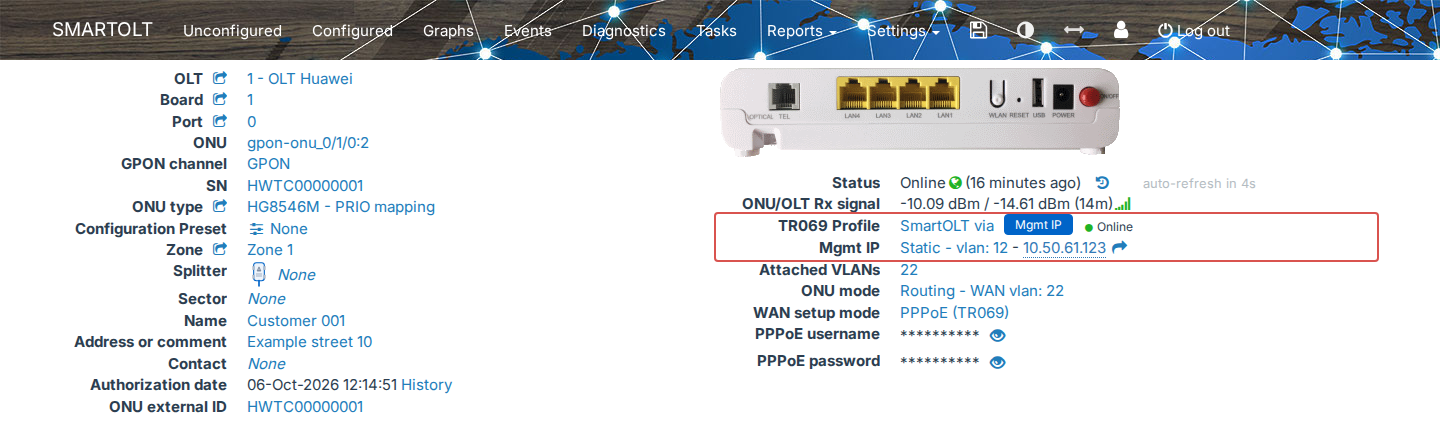
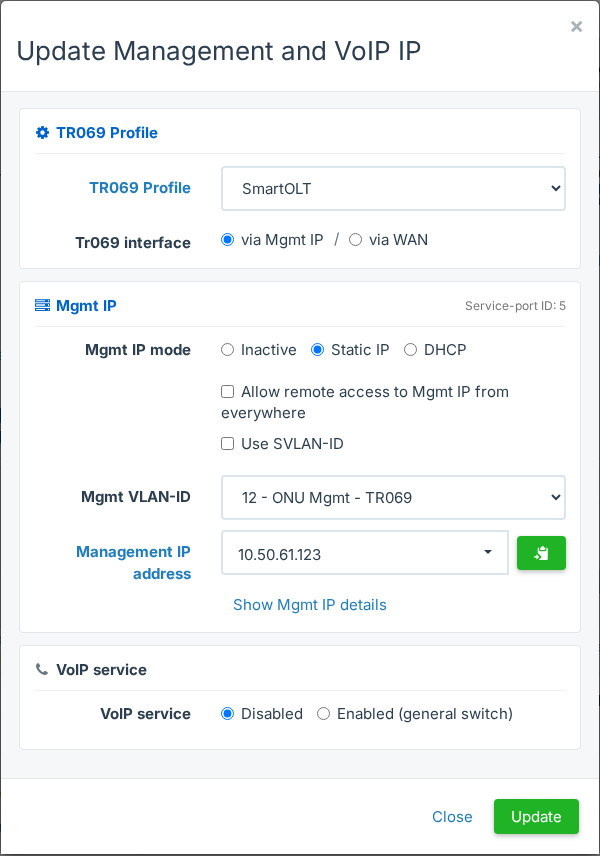
Open the ONU page and click the value next to TR069 Profile or Mgmt IP. The Update Management and VoIP IP window opens.
| Field | What to set |
|---|---|
| TR069 Profile | Select the profile that you checked in step 4, for example SmartOLT. The list shows only the profiles that have the OLT of the ONU in their OLTs column. Select Disabled to turn TR-069 off for the ONU. |
| Tr069 interface | With via Mgmt IP, the ONU reaches the ACS through the management IP. With via WAN, the ONU reaches the ACS through the internet connection. This field appears only on Huawei and ZTE OLTs. |
| Mgmt IP mode | With Static IP, SmartOLT gives the ONU an address from the management IP pool. With DHCP, the ONU gets its address from a DHCP server; this option appears only if it is enabled for your account. With Inactive, the ONU has no management IP. |
| Allow remote access to Mgmt IP from everywhere | Allows access to the management IP of the ONU from any address. If the OLT has access lists, the label ends in Access Lists instead, and only the addresses in those lists get access. |
| Use SVLAN-ID | Sends the management traffic with an outer SVLAN tag. This field appears only when the Use SVLAN-ID option is on for the OLT. |
| Mgmt VLAN-ID | The management VLAN of the OLT. |
| Management IP address | With Static IP, select a free address from the pool. To see the subnet mask, the gateway and the DNS servers, click Show Mgmt IP details. |
| VoIP service | Enabled turns on VoIP for the ONU, and Attach VoIP to selects the IP interface for VoIP, for example Mgmt or WAN. After you enable VoIP, assign the phone numbers in the VoIP ports settings. |
Click Update.
When you can, use Static IP for the management IP. If the ONU uses Setup via ONU webpage and TR-069 goes through the management IP, SmartOLT asks for an active management IP.
TR069 via MGMT IP requires a MGMT IP interface, so select Static IP or DHCP in Mgmt IP mode. TR069 via WAN usually requires a WAN interface, so set WAN mode to DHCP, Static IP or PPPoE as described in Configure WiFi and internet (WAN) on an ONU with TR-069.
If the pool has no free address, SmartOLT shows a message with a link to add a new pool. If Mgmt VLAN-ID is empty, SmartOLT shows a link to the VLANs of the OLT.
8Check that the ONU reports to the ACS
After you enable the profile, the ONU contacts the ACS; this contact is called an inform. First, check that the MikroTik can ping the management IP of the ONU, for example 10.50.61.123.
The TR069 Profile row on the ONU page shows the profile, the interface and the state of the last inform, for example SmartOLT via Mgmt IP ● Online. Here SmartOLT is the profile name, and Mgmt IP is a badge that shows the interface that TR-069 uses.
| State | Meaning |
|---|---|
| Online | The ONU sent an inform in the last hour. |
| Not informed recently | The last inform is older than one hour. |
| Never informed | The ACS has no record of the ONU. |
To see the time of the Last inform, hold the mouse over the state.
Click TR069 Stat to open the data that the ONU reports to the ACS. This button appears only when the ONU uses a TR-069 profile of the SmartOLT ACS. The panels are described in Check the result in TR069 Stat.
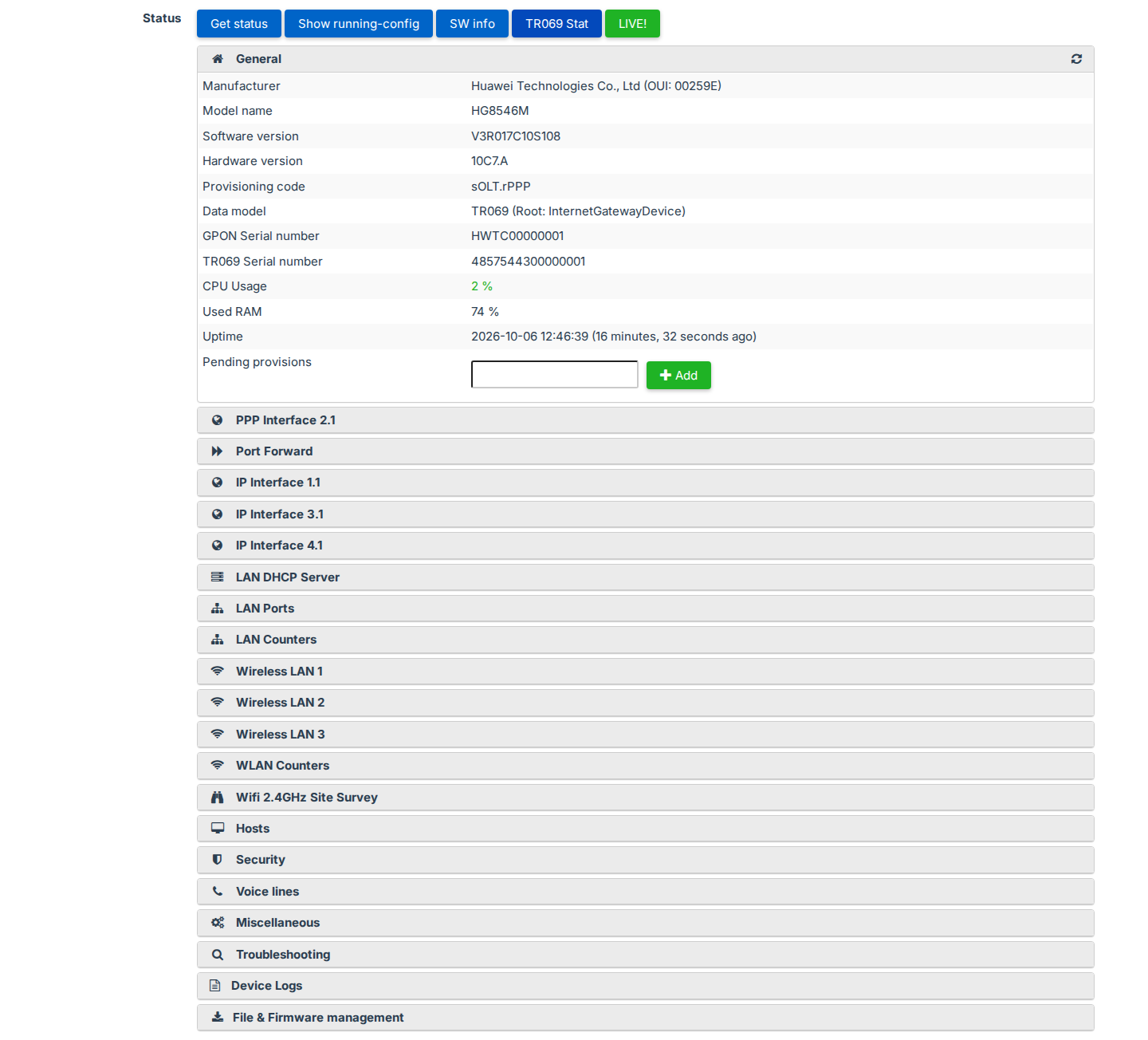
If the ONU has not contacted the ACS yet, SmartOLT shows Checking whether the ONU has contacted the TR-069 server... and checks for about 30 seconds. After that, you can click Check again.
If the ONU still does not answer, SmartOLT shows The ONU is still not reachable through TR-069. In this case, click Run diagnostics. The TR-069 connectivity diagnostics window checks the ONU status on the OLT, the ACS and the path to the management IP, and each step shows PASS, WARN or FAIL with a short explanation.
Next steps
TR-069 is now active on the ONU. Next, set the internet connection and the WiFi in Configure WiFi and internet (WAN) on an ONU with TR-069. On that page you also choose the WAN Config method, OMCI or TR069. Only TR069 allows dual stack IPv4/IPv6.