
An ONU type describes an ONU model: its PON type, its ports and its capabilities. The ONU types list is your own database, and you can define any ONU model you use. SmartOLT uses the ONU type when it authorizes an ONU and when it configures the ports of the ONU. The list already contains common Huawei and ZTE models, so you add a type when you use a model that is not there yet.
1Open the list
Go to Settings → ONU types.
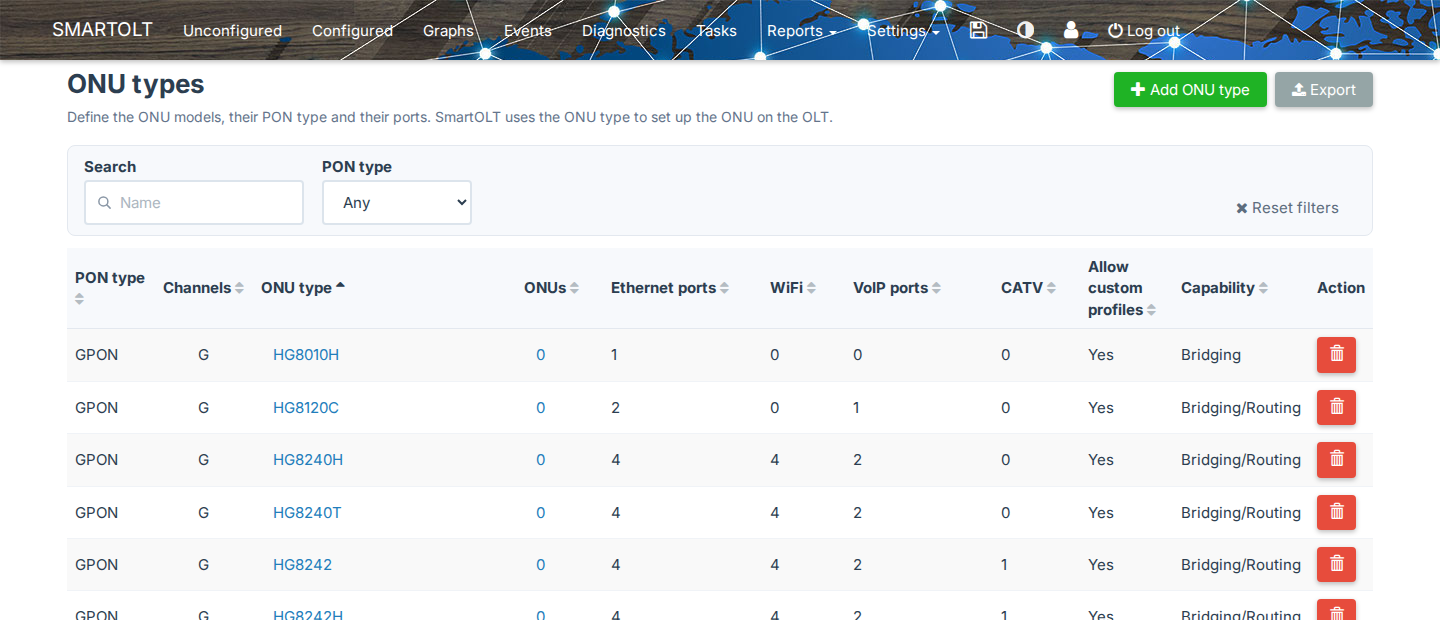
You can use the filters to find a type:
- Search finds types by name.
- PON type shows only GPON types or only EPON types.
- Reset filters clears the filters.
To sort the list by a column, click the column heading.
| Column | Meaning |
|---|---|
| PON type | GPON or EPON. |
| Channels | The PON channels that the ONU supports. G is GPON, XG is XG-PON and XGS is XGS-PON, while E is EPON and 10G is 10G-EPON. |
| ONU type | The model name. Click it to edit the type. |
| ONUs | The number of authorized ONUs of this type. Click the number to open the Configured list filtered by this type. |
| Ethernet ports | The number of Ethernet ports. |
| WiFi | The number of WiFi SSIDs. |
| VoIP ports | The number of phone ports. |
| CATV | 1 if the ONU has a CATV (RF video) port. |
| Allow custom profiles | Yes if you can authorize this type with a custom profile. |
| Capability | Bridging or Bridging/Routing. |
To download the filtered list as a CSV file, click Export.
To add, edit or delete a type, you need the right to manage ONU types. Without this right, you see the list without the Add ONU type button and without links.
2Find out if a type is missing
The OLT reports the model of each new ONU. If the model is not in the ONU types list, Unconfigured shows an info icon next to the ONU type, and when you click the icon, SmartOLT shows this message:
This ONU type is not defined in SmartOLT database. Click here or go to Settings -> ONU types and Add this specific model with correct number of ports and capabilities
Click here opens the Add ONU type form with the model name already filled in.
3Add an ONU type
Click Add ONU type. To see the image and the port prefixes, click Advanced ».
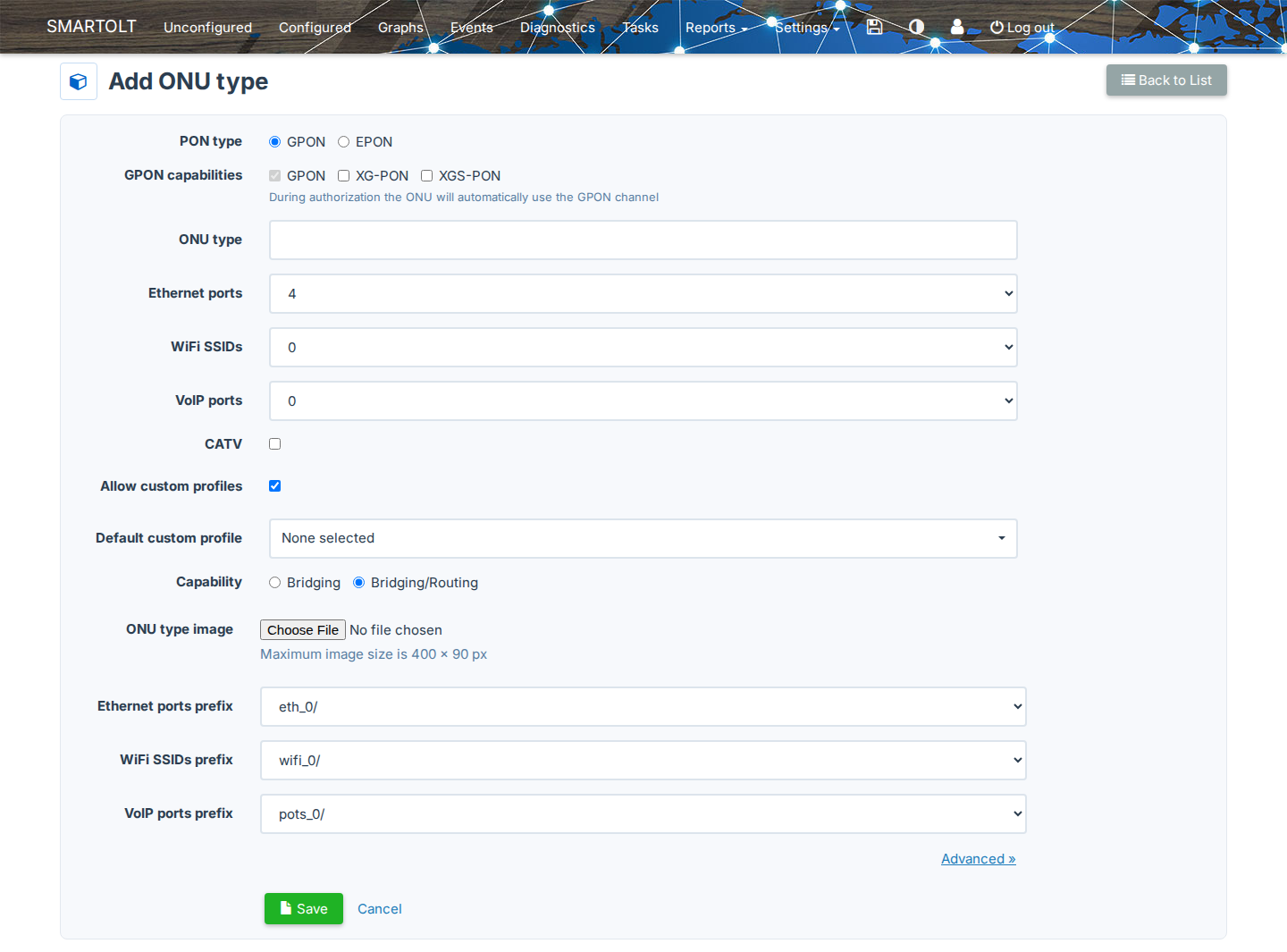
| Field | What to set |
|---|---|
| PON type | GPON or EPON. You cannot change it later. |
| GPON capabilities | GPON is always on, so select XG-PON or XGS-PON only if the model supports it. For EPON, the field is EPON capabilities, with 10G-EPON. |
| ONU type | The model name exactly as the OLT reports it, for example HG8546M. It has up to 32 characters, which can be letters, digits, _, ., +, / and -, with no spaces. You cannot change it later. |
| Ethernet ports | The number of Ethernet ports of the model. |
| WiFi SSIDs | The number of WiFi SSIDs that the model supports, or 0 for an ONU without WiFi. |
| VoIP ports | The number of phone ports. |
| CATV | Select it if the model has a CATV port. This option is only for GPON. |
| Allow custom profiles | Select it to allow authorization with a custom profile. |
| Default custom profile | Optional. The custom profile that SmartOLT selects for this type during authorization, one for each OLT. |
| Capability | Bridging for an ONU that works only as a bridge, or Bridging/Routing for an ONU that can also work as a router. |
| ONU type image | Optional. A picture of the ONU for the ONU page, with a maximum size of 400 × 90 px. |
| Ethernet ports prefix, WiFi SSIDs prefix, VoIP ports prefix | The names of the ports, for example eth_0/1. Keep the default values, unless the ONU uses eth_1/, wifi_1/ or pots_1/. |
When you select XG-PON, XGS-PON or 10G-EPON, SmartOLT asks you to confirm, because a wrong capability can make the authorization fail. The message names the channel that you selected, for example: Are you sure this equipment supports XGS-PON? Incorrect capability selection may cause authorization errors.
Click Save, and SmartOLT shows ONU type was added. If the name is already in use, SmartOLT shows Name should be unique.
Set the number of ports exactly as on the ONU, because SmartOLT configures only the ports that the ONU type has. If a port is missing in the ONU type, it does not appear on the ONU page and you cannot configure it.
4How the ONU type affects authorization
When you select the ONU type in the authorization form, SmartOLT sets some fields for you:
| ONU type setting | Effect in the authorization form |
|---|---|
| Capability is Bridging | ONU mode shows only Bridging. |
| XGS-PON or XG-PON selected | SmartOLT selects that channel, and if neither is selected, it selects GPON. The same applies to 10G-EPON. |
| Allow custom profiles | Use custom profile appears. If the type has a Default custom profile for the OLT, SmartOLT selects it. |
See Authorize an ONU.
5Edit an ONU type
Click the name of the type in the list.
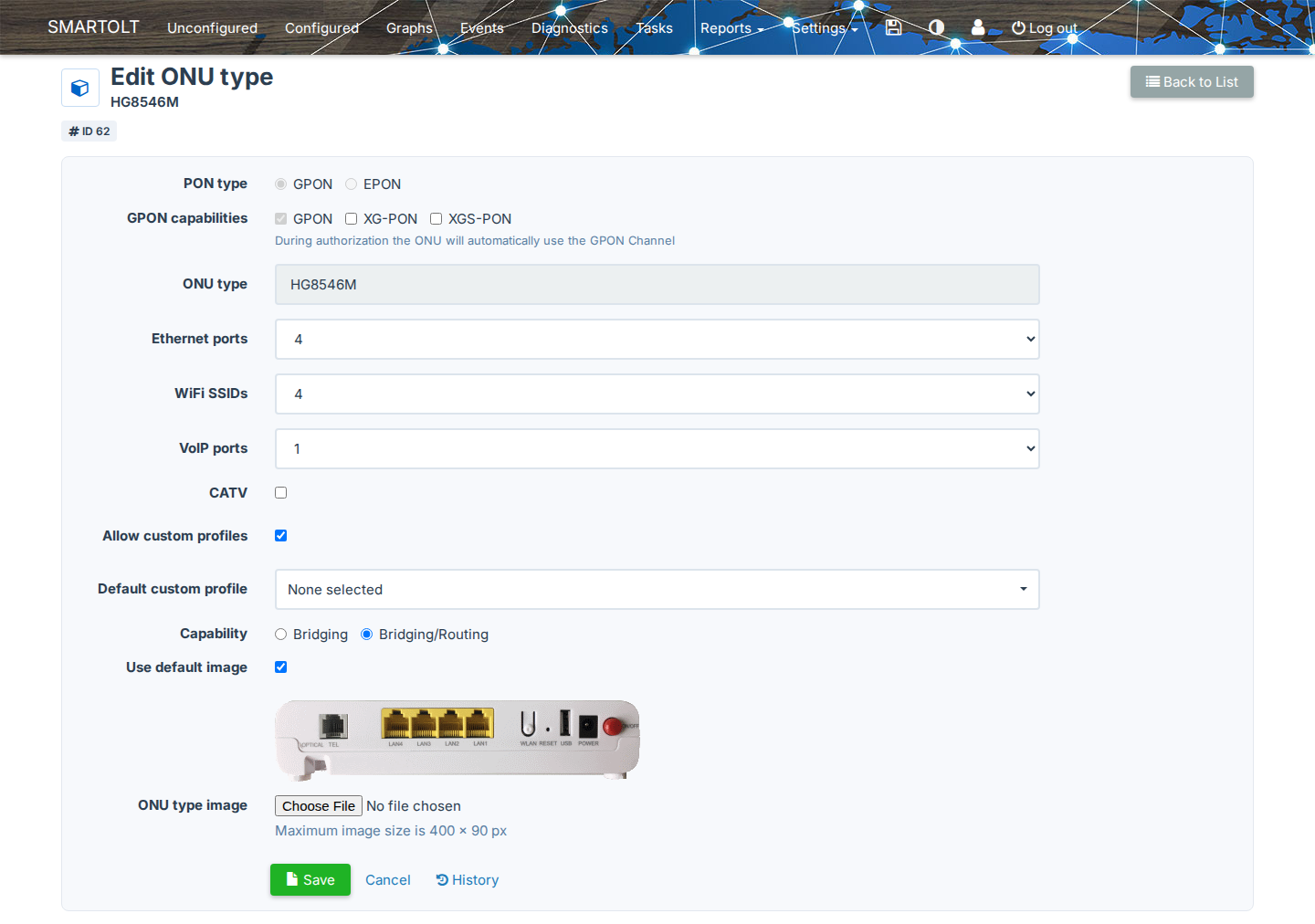
You can change the capabilities, the number of ports, CATV, the custom profile settings, Capability and the image. You cannot change PON type or ONU type.
- Ethernet ports can only go up, so the list does not offer a lower number.
- Use default image shows the standard picture for the number of ports. If you want to upload your own image in ONU type image, clear this option.
- History shows the earlier changes to the type.
If you lower WiFi SSIDs or VoIP ports, SmartOLT shows ONU type interface count will be reduced. The window lists the Ports to be removed and the affected ONUs, and asks: The removed interfaces and the settings configured on them will be permanently deleted. Continue?
Click Save, and SmartOLT shows ONU type was updated.
When you lower WiFi SSIDs or VoIP ports, SmartOLT deletes the settings that it saved for the removed ports on every ONU of this type. The number of Ethernet ports can only increase.
6Delete an ONU type
Click the delete icon on the row of the type, and SmartOLT shows the type and its ports.
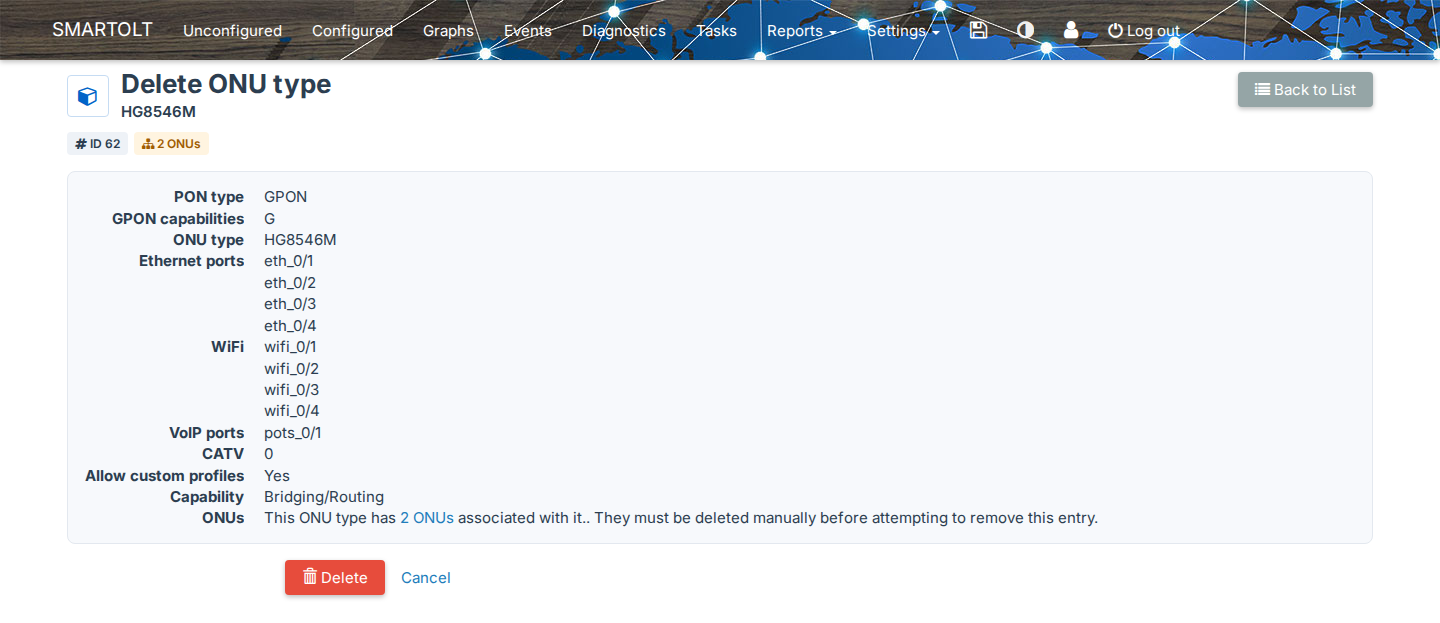
You can delete a type only when no ONU uses it. If ONUs use it, the page shows This ONU type has N ONUs associated with it. They must be deleted manually before attempting to remove this entry. If you click Delete anyway, SmartOLT shows Please delete the existing ONUs first.
If you want to keep the ONUs, first change their type with Change ONUs ONU Type in Batch actions.
When the type has no ONUs, click Delete, and SmartOLT shows ONU type was deleted.