
Choose one:
A rogue ONU is a faulty ONU that sends light when it is not its turn. It can take down the other ONUs on the same PON port. This page shows how to check a PON port for a rogue ONU in SmartOLT, and how to find the ONU in the field when the OLT cannot tell which one it is.
How you recognize a rogue ONU
On a PON port, the ONUs send upstream one after the other. The OLT gives each ONU a short time slot. A rogue ONU sends outside its time slot, or all the time, so the OLT no longer hears the other ONUs.
Typical signs:
- Many ONUs on the same PON port go to Loss of Signal and come back, again and again.
- The ONUs on the other PON ports of the OLT work normally.
- The problem often starts after a new ONU is installed, or after a power outage at a customer.
A fiber cut looks different: the ONUs behind the cut stay down and do not come back by themselves.
1Open Rogue ONU detect
Go to Settings → OLTs, click View on the OLT and open the PON ports tab. In the Properties column, Rogue ONU detect shows if detection is on for the card of the port. When the OLT reports a rogue ONU on a port, the port shows ROGUE ONU in red, and SmartOLT offers to open the check.
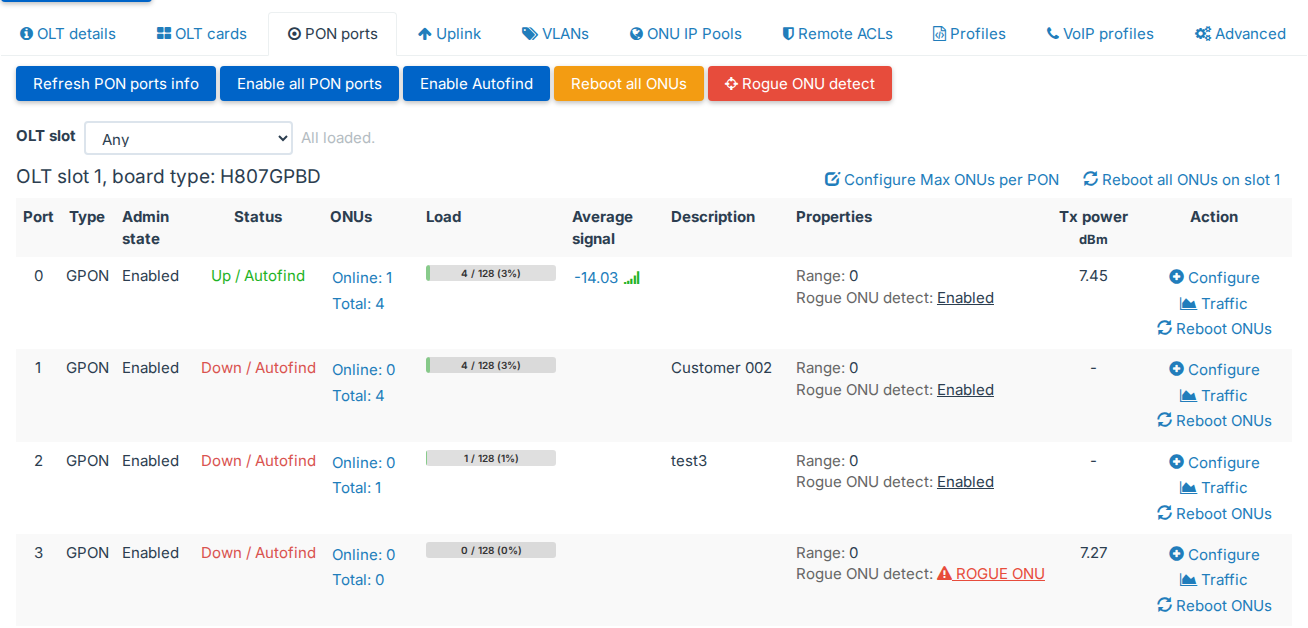
Click Rogue ONU detect above the list. The window lists the GPON cards of the OLT.
2Turn on detection
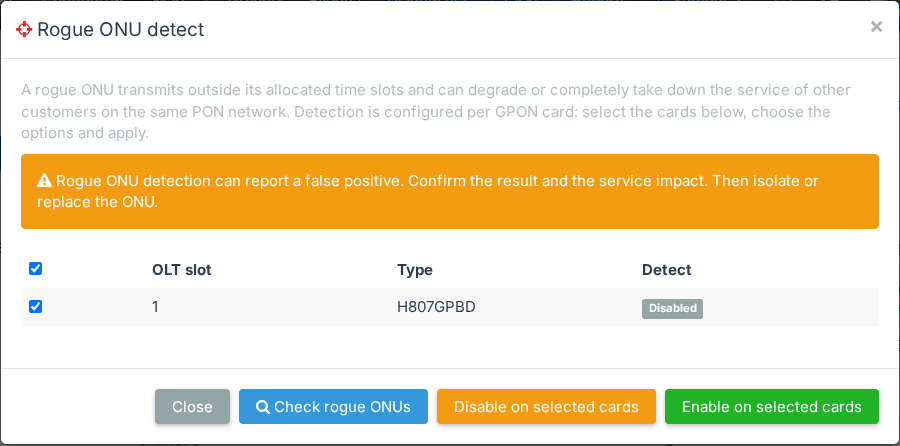
Detection must be on before the OLT can report a rogue ONU. The window looks different on Huawei and on ZTE.
On Huawei, the window shows only the Detect column. Detection is on or off for the whole OLT, so Enable on selected cards turns it on for all cards.
On ZTE, you turn detection on per card. The window also shows two options, selected by default:
- Locate the rogue ONU: the OLT tries to find the SN of the rogue ONU.
- Auto shutdown: the OLT disables an ONU that it finds rogue, so the other ONUs on the port come back.
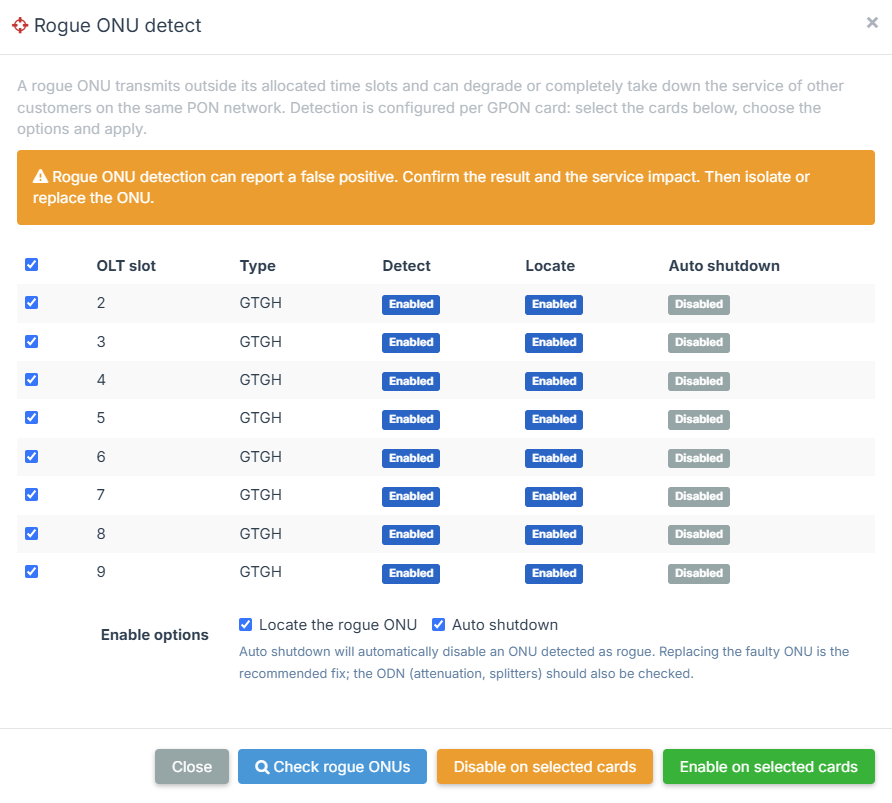
Select the cards, choose the options on ZTE, and click Enable on selected cards.
3Check the PON ports
Select the card of the port and click Check rogue ONUs. The result appears in the window:
-
No rogue ONUs were detected on the selected cards. The OLT sees no rogue ONU now. If the ONUs still drop, check the fiber and the splitters, and use step 5: some rogue ONUs send light only from time to time.
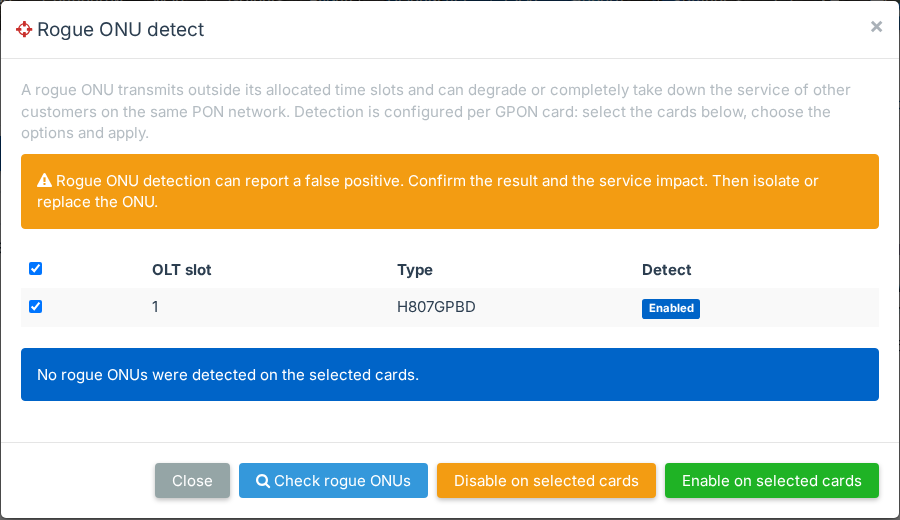
Check result: no rogue ONU -
The result shows the SN of an ONU: go to step 4.
-
Rogue ONU detected on this PON port. The OLT does not report which ONU is rogue., or a result without an SN: go to step 5.
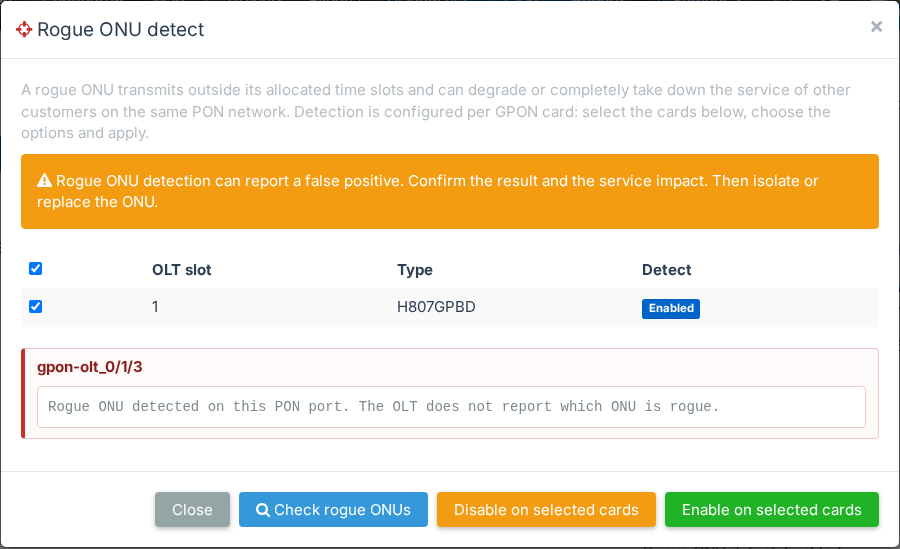
Check result: rogue ONU on port 0/1/3, not identified
The OLT can be wrong. Before you replace an ONU, check that the problem stops when this ONU is off.
4When the OLT names the ONU
Go to Configured, search for the SN and open the ONU page. Click Disable ONU, then watch the other ONUs on the port. If they come back online and stay online, this ONU is the rogue ONU. Replace it, see Replace the ONU hardware.
A broken ONU does not always obey the OLT. If the other ONUs still drop after Disable ONU, ask the customer to unplug the ONU from power, and watch again.
5When the OLT does not name the ONU
Then you find the ONU in the field, on the fiber. Before you go, look for a suspect in SmartOLT: an ONU that was installed or replaced just before the problem started, or an ONU of a customer who had a power outage. Unplug that ONU first.
You need an optical power meter that measures at 1310 nm, the wavelength that the ONUs send.
Method 1: measure with the power meter
- Unplug the fiber of the PON port from the OLT and connect it to the power meter.
- Read the power at 1310 nm. Without the OLT, a normal ONU sends nothing. If you measure a signal, an ONU sends light when it should be silent. That is the rogue ONU.
- Go to the first splitter. Unplug its output fibers one by one and measure each one. The output with a signal leads to the rogue ONU.
- Follow that fiber to the next splitter and repeat, until you reach the ONU.
A rogue ONU that sends light only from time to time can give no reading. Then use method 2.
Method 2: block the outputs one by one
Here the OLT stays connected and a colleague watches the ONUs of the port in SmartOLT, for example on the Diagnostics page with the OLT, Board and Port selected. After each change, wait a minute and click 
 , so SmartOLT reads the current status from the OLT. See Diagnostics.
- Start at the first splitter after the OLT.
- Block one output: wind its fiber a few turns around a pencil or a screwdriver. The tight bend stops the light, and the fiber does not break. If the output has a connector, you can unplug it instead.
- Watch the other ONUs:
- If they come back online and stay online, the rogue ONU is behind this output.
- If they still drop, release the fiber and block the next output.
- If the output that you found goes to another splitter, move to that splitter and repeat from step 2 on its outputs. If it goes to an ONU, that ONU is the rogue ONU.
Replace the rogue ONU. The other ONUs on the port then work normally again.
Get an alert next time
With SNMP traps on the OLT, SmartOLT shows a Rogue ONUs event on the Events page and can send it on Telegram. See Get alerts for PON outages, loops and rogue ONUs.