
This guide shows how to deliver IPTV to an ONU. The TV channels come from your multicast source in a multicast VLAN. The OLT sends each channel only to the ONUs where a set-top box asks for it (IGMP), and the ONU sends it to the set-top box on a LAN port or on WiFi.
You prepare the OLT once, and then you configure each ONU:
- Enable the IPTV module on the OLT.
- Add the multicast VLAN and tag it on the uplink port.
- Check that you have IPTV speed profiles.
- Enable IPTV on the ONU.
- Set the LAN port of the set-top box to IPTV.
Section 6 describes the CATV port, which some ONUs have for analog or cable TV.
To enable the IPTV module and add VLANs, you need the rights to edit the OLT. To change IPTV on an ONU, a user needs the right to configure ONU IPTV.
1Enable the IPTV module on the OLT
Go to Settings → OLTs and click View on the OLT. The OLT details tab shows IPTV module Disabled when IPTV is off. While the module is off, the ONU pages do not show the IPTV row.
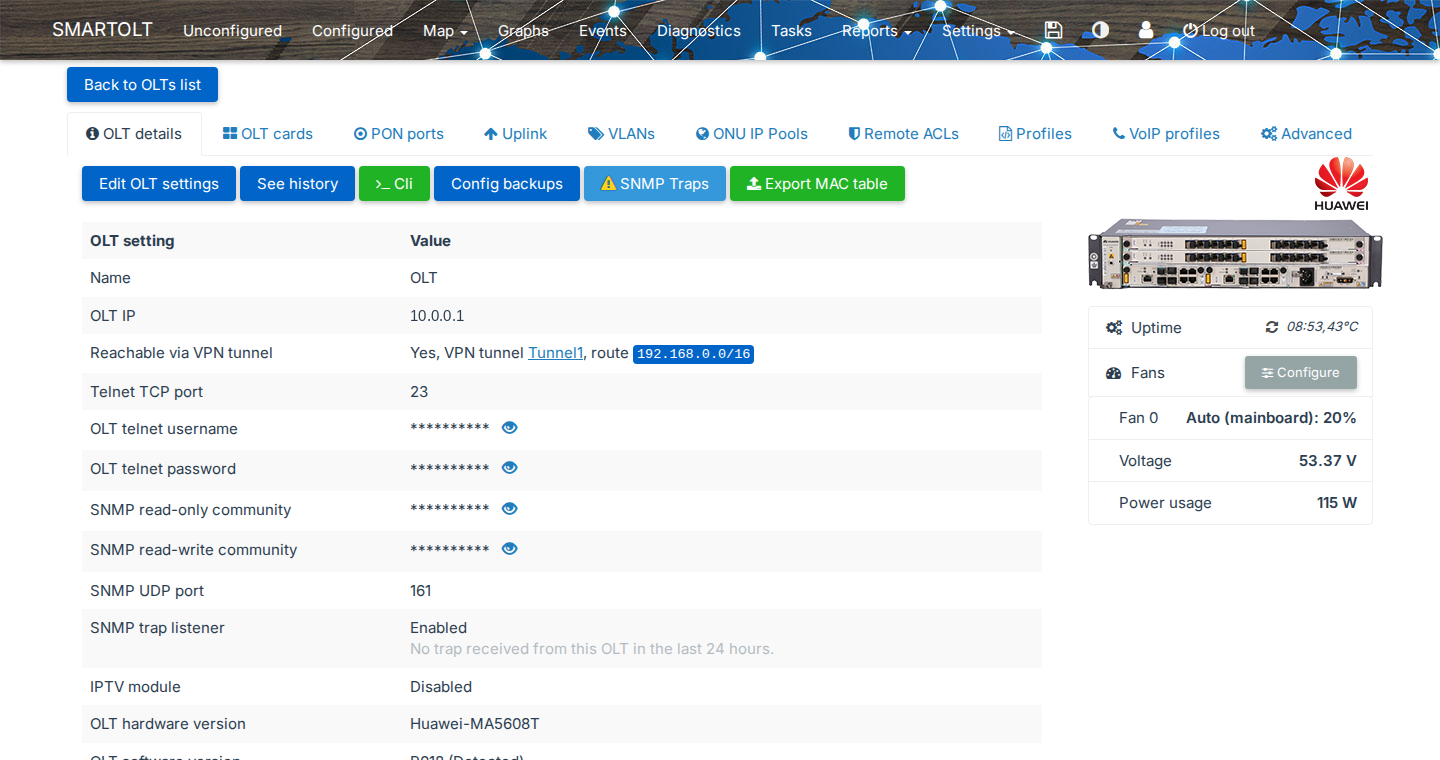
Click Edit OLT settings, select Enable next to IPTV module, and click Save.
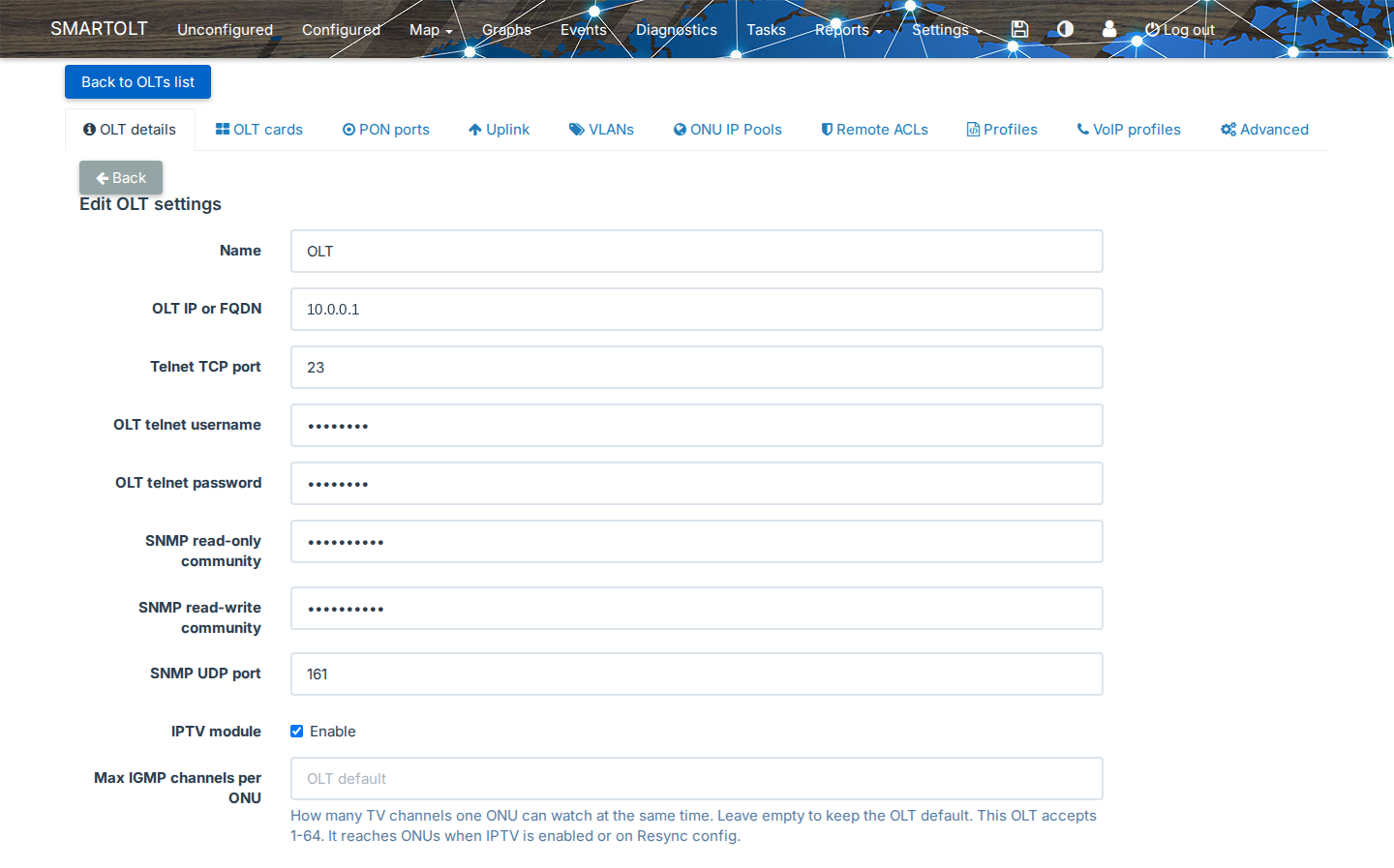
| Field | What to set |
|---|---|
| IPTV module | Enable. |
| Max IGMP channels per ONU | How many TV channels one ONU can watch at the same time. The field appears only for OLTs that support this limit, and the help text shows the range that the OLT accepts. If you leave it empty, the OLT keeps its default. The limit reaches an ONU when you enable IPTV on it, or when you run Resync config on it. |
Do not change the other fields of the form. OLT details now shows IPTV module Enabled.
2Add the multicast VLAN
Open the VLANs tab and click Add VLAN.
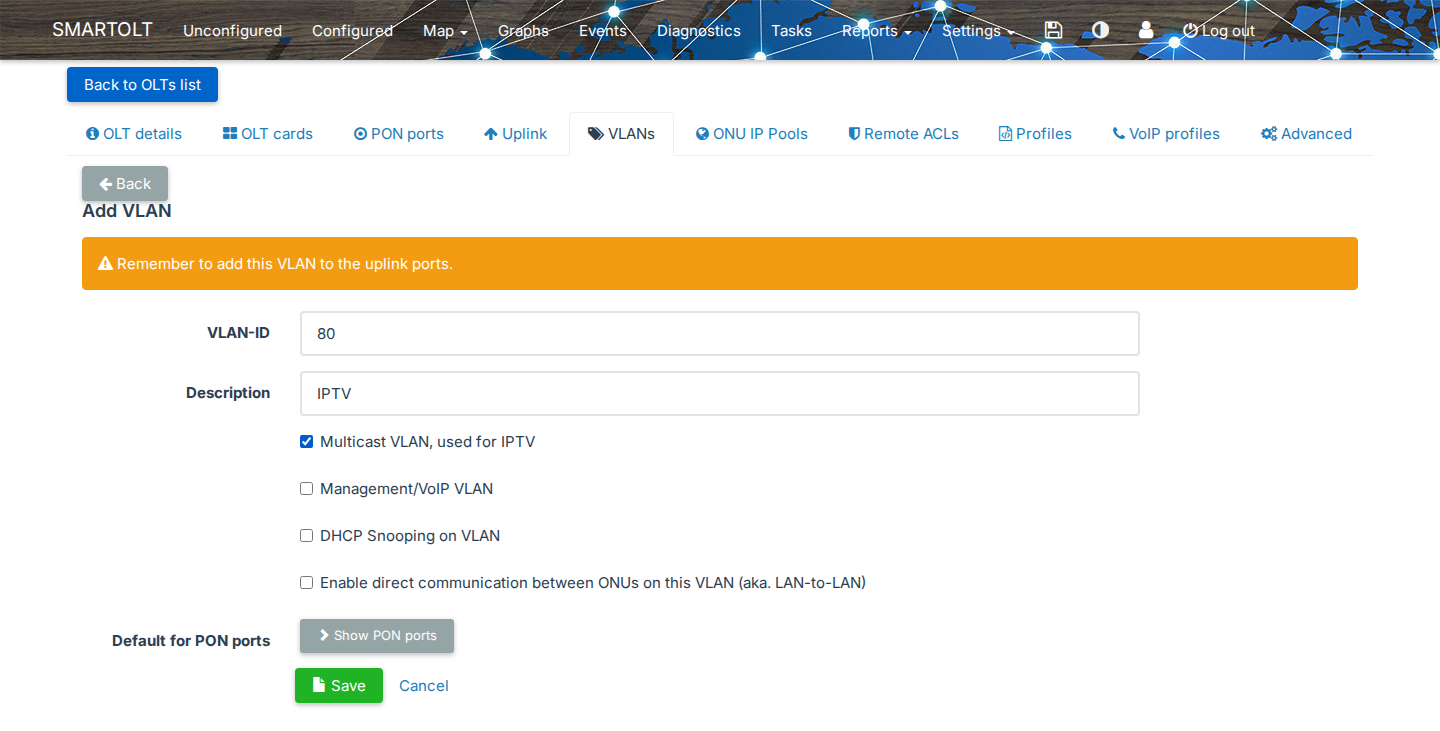
| Field | What to set |
|---|---|
| VLAN-ID | The VLAN in which your multicast source sends the channels, for example 80. |
| Description | Optional, for example IPTV. |
| Multicast VLAN, used for IPTV | Select it. Only VLANs with this option appear in the IPTV VLAN ID list of the ONU. You cannot select it together with Management/VoIP VLAN. |
Click Save. Then open the Uplink tab, click Configure on the port that goes to your multicast source, type the VLAN in Add VLANs, and click Save. SmartOLT does not add the VLAN to the uplink ports by itself.
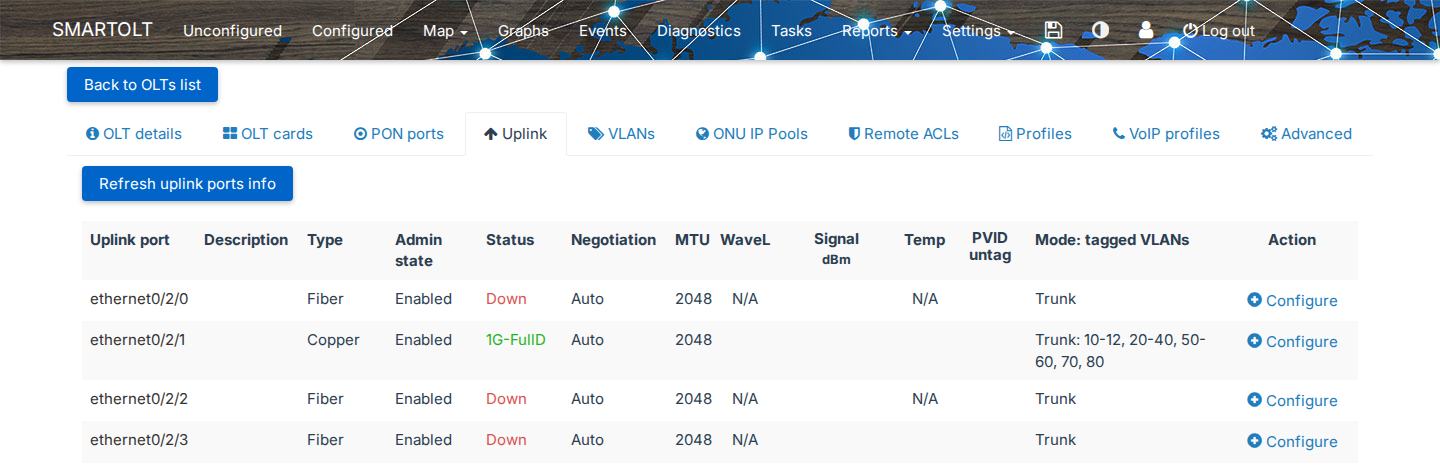
For all the fields of the VLAN form and the errors it can show, see OLT VLANs and IP pools.
3Check the IPTV speed profiles
The IPTV service of an ONU has its own download and upload speed. Go to Settings → Speed profiles and check that the list has profiles of the type IPTV, for example 50M. If it has none, add them as described in Speed profiles. SmartOLT shows IPTV profiles only in the IPTV settings, and never in the internet speed lists.
4Enable IPTV on the ONU
Open the ONU page. The IPTV row shows Inactive.

Click Inactive, and the Update IPTV window opens.
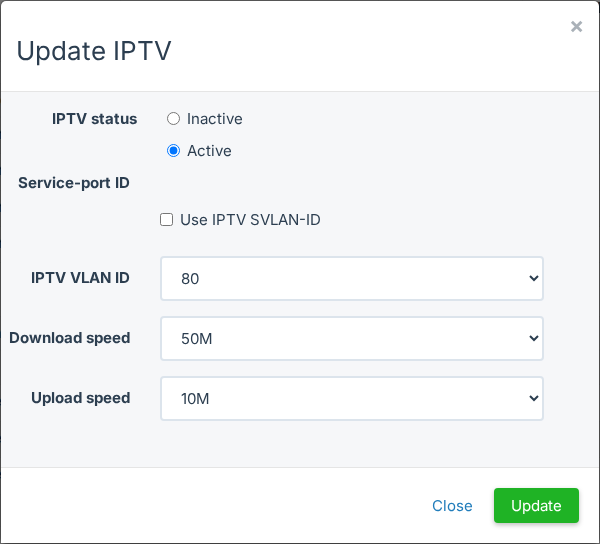
| Field | What to set |
|---|---|
| IPTV status | Active. |
| Service-port ID | The service port of the IPTV service on the OLT. It is empty until you activate IPTV, and you cannot change it. |
| IPTV VLAN ID | The multicast VLAN from step 2. |
| Download speed, Upload speed | IPTV speed profiles from step 3. |
| Use IPTV SVLAN-ID, IPTV SVLAN ID, Tag-transform mode | Only when the OLT uses the SVLAN option. Select them if the IPTV traffic needs an outer VLAN. |
| Use IPTV CVLAN-ID, IPTV CVLAN ID | Only when the OLT uses the CVLAN option. |
| Allowed MACs | Only when the OLT uses the MAC allow list. Optional: the MAC addresses of the set-top boxes that can use IPTV, separated by commas. |
| Filtered MACs | Only when the OLT uses the MAC drop list. Optional: the MAC addresses that cannot use IPTV, separated by commas. |
Click Update. SmartOLT sends the settings to the OLT, and the IPTV row shows Active - VLAN-ID: 80.

The window can show these errors:
| Error | Cause |
|---|---|
| Please input a valid value for the IPTV VLAN-ID | No VLAN is selected. Check that the OLT has a VLAN with Multicast VLAN, used for IPTV. |
| Please input a valid value for the IPTV download speed | No download profile is selected. Add an IPTV speed profile first. |
| Please input a valid value for the IPTV upload speed | No upload profile is selected. |
| Please select a value for the IPTV SVLAN-ID | Use IPTV SVLAN-ID is selected, but no SVLAN is selected. |
| Please input valid values for allowed MACs, separated by comma. | A MAC address in Allowed MACs is not valid. |
| Please input valid values for filtered MACs, separated by comma. | A MAC address in Filtered MACs is not valid. |
To turn IPTV off, open the window again, select Inactive and click Update. SmartOLT removes the IPTV service port from the OLT.
5Set the LAN port of the set-top box to IPTV
The ONU sends the channels only to the ports that you set to IPTV. In the Ethernet ports section of the ONU page, click Configure on the port of the set-top box. The IPTV mode appears only after IPTV is active on the ONU.
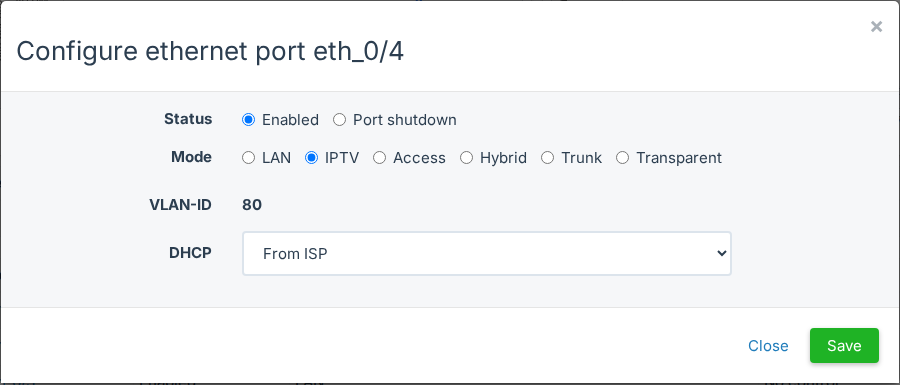
Select IPTV. The window shows the IPTV VLAN of the ONU under VLAN-ID. Click Save. For the other port modes, see Manage an authorized ONU.
To enable or disable IPTV on many ONUs, including their Ethernet ports and WiFi slots, use the batch action Change ONUs IPTV service. See Batch actions.
6CATV
Some ONUs have a CATV port. This port is an RF output for analog or cable TV, which arrives on a separate wavelength of the fiber. CATV does not use IP, so it needs no VLAN and no IPTV module.
The ONU page shows a CATV row for every ONU, but only ONU types with a CATV port can use it:
- If the ONU type has a CATV port, the row has an Enable checkbox. Select it to turn the CATV port on, or clear it to turn the port off. SmartOLT sends the change to the OLT right away, shows Waiting for OLT while the command runs, and then shows CATV enabled or CATV disabled. If the OLT refuses the command, SmartOLT shows OLT wasn't able to process the command.
- If the ONU type has no CATV port, the row shows Not supported by ONU-Type. Whether a model has a CATV port is part of its ONU type, see ONU types.
The OLT applies the CATV command only while the ONU is online. When you enable an ONU that was disabled, SmartOLT applies its CATV state again after the ONU comes online.
SmartOLT also compares the CATV state in its database with the OLT. The Configuration Mismatch (Database vs OLT) page shows the differences, and, if Automatically keep the OLT config in sync with SmartOLT is enabled for the OLT on that page (Reports → Find config mismatches (DB vs OLT)), SmartOLT sends its state to the OLT every day. See Keep the OLTs in sync automatically.
To change CATV, a user needs the right to configure ONU CATV.