
SmartOLT connects to the OLT over Telnet and SNMP, so before you add the OLT, you must prepare it and connect it to SmartOLT as described in Getting started. This guide shows the Add OLT form and the OLT page, where you check that SmartOLT reads the OLT correctly.
1Open the OLT list
Go to Settings → OLTs. The list shows every OLT with its status dot and the VPN tunnel that it uses, together with the OLT IP, the TCP and UDP ports and the hardware and software versions.
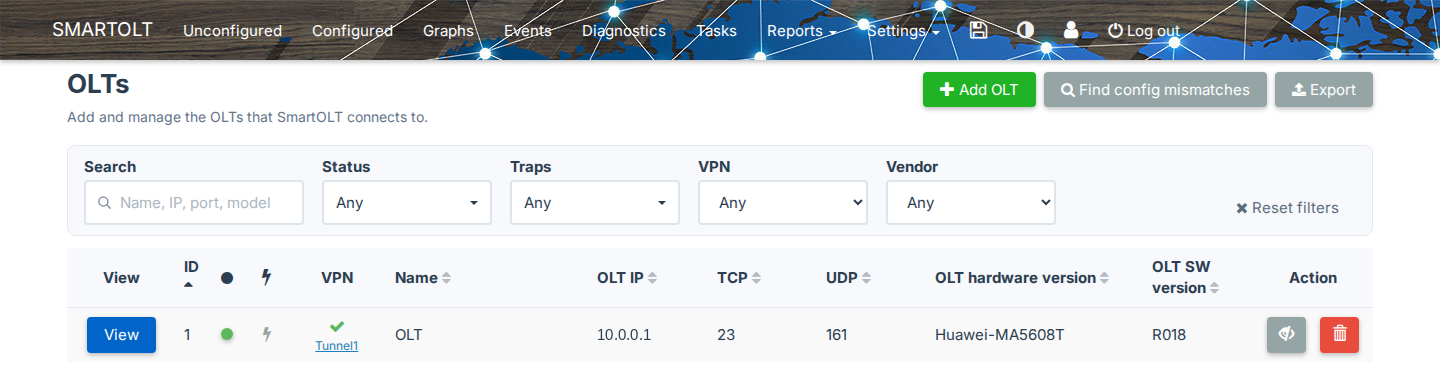
To find an OLT, use Search and the Status, Traps, VPN and Vendor filters. To add a new OLT, click Add OLT.
2Fill in the Add OLT form
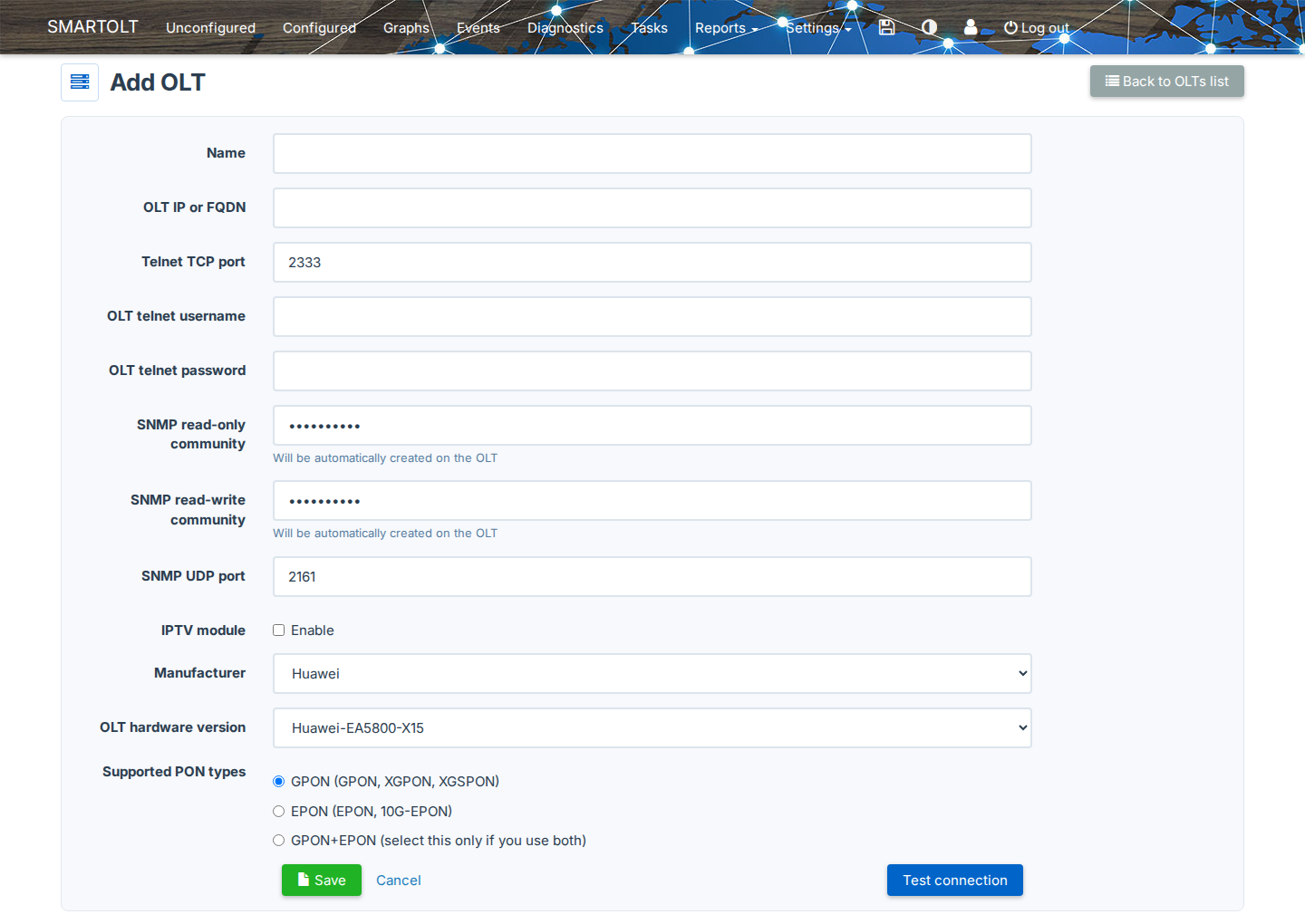
| Field | What to set |
|---|---|
| Name | A name for the OLT, from 1 to 100 characters. |
| OLT IP or FQDN | The IPv4 address of the OLT, or a host name that points to it. If you use a VPN tunnel, enter the private IP of the OLT. |
| Telnet TCP port | The Telnet port. The form fills in 2333, which is for port forwarding. When you type or paste a private IP in OLT IP or FQDN, the form changes the port to 23. Private IPs are 10.x.x.x, 172.16.x.x to 172.31.x.x, 192.168.x.x and 100.64.x.x to 100.127.x.x. The form changes the port in your browser at the moment that you change the IP, so enter the IP first, and then you can change the port. SmartOLT does not change the port when you save the OLT. |
| OLT telnet username, OLT telnet password | The user that you created on the OLT for SmartOLT. The user name has 3 to 20 characters, and it can use only lowercase letters, numbers and underscore. |
| SNMP read-only community, SNMP read-write community | SmartOLT fills in generated values. When Will be automatically created on the OLT is shown, SmartOLT adds the communities to the OLT for you. On Huawei, a community has 12 to 25 characters, with at least one lowercase letter, one uppercase letter and one special character. |
| SNMP UDP port | The SNMP port. The form fills in 2161, which is for port forwarding. When you type or paste a private IP in OLT IP or FQDN, the form changes the port to 161, in the same way as the Telnet port. |
| IPTV module | Select Enable if you deliver IPTV through this OLT. Then the Max IGMP channels per ONU field appears, and if you leave it empty, the OLT keeps its default. |
| Manufacturer | Huawei or ZTE. |
| OLT hardware version | The OLT model, for example Huawei-MA5608T. |
| OLT software version | This field appears only for the models that need it. SmartOLT detects the exact version after it connects. |
| Supported PON types | GPON (GPON, XGPON, XGSPON) or EPON (EPON, 10G-EPON). Select GPON+EPON only if the OLT has both. |
If a field is not valid, the form shows the rule under the field, for example Only valid IPv4 or FQDN addresses are allowed for OLT IP.
3Save or test the connection
When you click Save, SmartOLT adds the OLT, shows OLT added and opens the OLT page. Then SmartOLT sends its profiles to the OLT.
If you want to check the Telnet and SNMP access first, click Test connection. Test connection also adds the OLT, but it does not send the profiles to the OLT. After the test, SmartOLT opens the OLT page with the result:
| Message | Meaning |
|---|---|
| TCP connection on port 23 successful. UDP connection on port 161 successful. | SmartOLT logged in over Telnet and read the OLT over SNMP. |
| SmartOLT could not authenticate and read the OLT hostname through Telnet on TCP port ... | Telnet failed, so check the IP, the port, the user and the password. |
| The OLT did not return its hostname over SNMP on UDP port ... | SNMP failed, so check the SNMP community, the ACL and the SNMP service on the OLT. |
| SNMP is configured on the OLT, but requests on UDP port ... do not reach it. | A firewall, a NAT rule or a route between the VPN tunnel and the OLT blocks UDP. |
| SNMP answers on UDP port ..., but the hostname or uptime it reports does not match ... | The IP and SNMP port reach a different device, so check the port forwarding. |
If you work in a restriction group, SmartOLT adds the new OLT to your group. In this case, the message also shows Note: The restriction group ... was updated to also include this OLT.
4Check the OLT details
The OLT page opens on the OLT details tab.
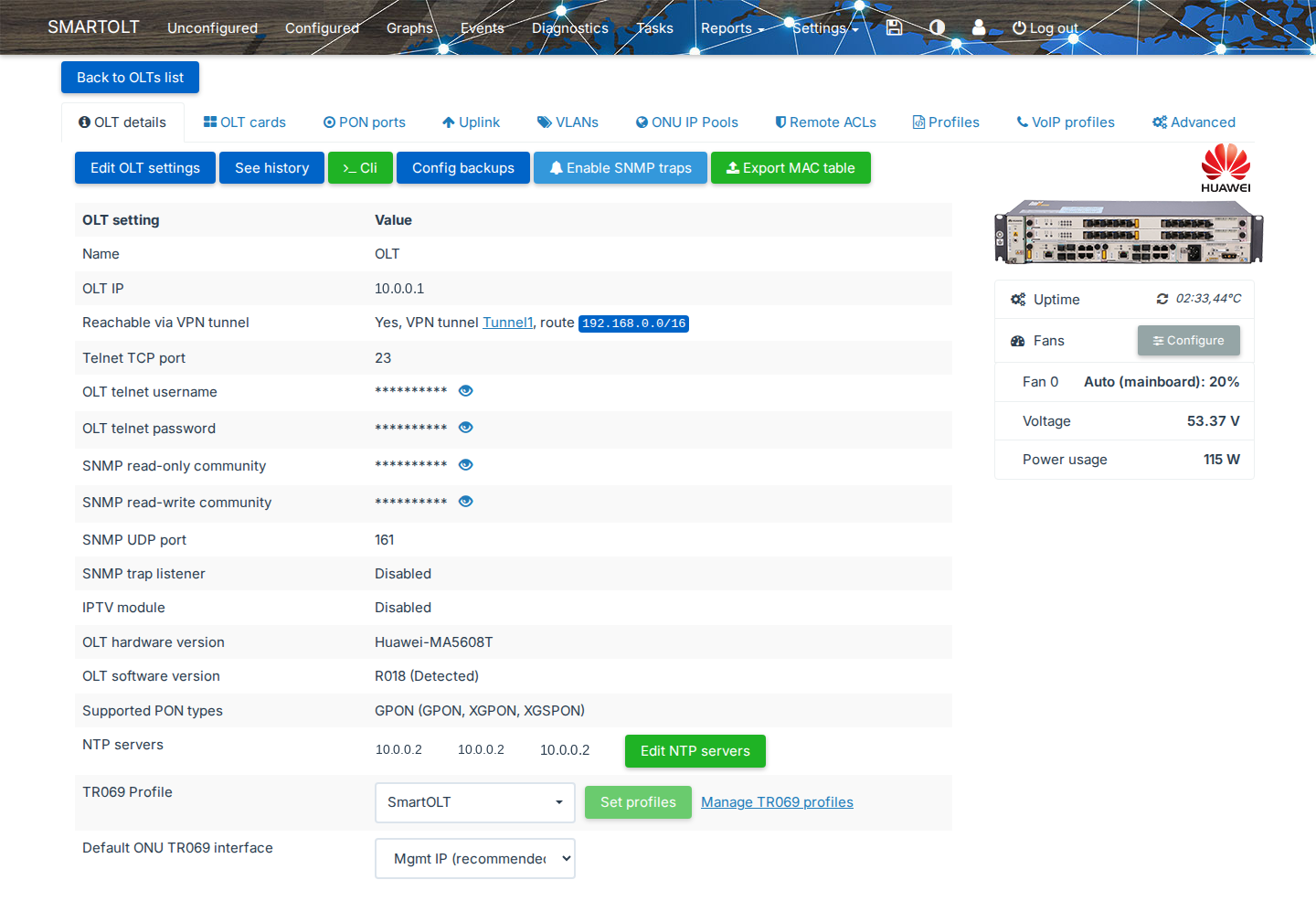
Check these values:
- Reachable via VPN tunnel shows the tunnel and the route, if the OLT uses a tunnel.
- OLT software version shows the version with (Detected) after SmartOLT reads it from the OLT.
- Uptime shows the OLT uptime and temperature. If it shows N/A in red, SmartOLT cannot read the OLT.
- Fans, Voltage and Power usage show the values that the OLT reports.
These are the buttons above the table:
| Button | What it does |
|---|---|
| Edit OLT settings | Opens the same fields as the Add OLT form. |
| See history | Shows the changes to the OLT and who made them. |
| Cli | Opens a command line to the OLT. |
| Config backups | Opens the backups of the OLT configuration. See step 8. |
| Enable SNMP traps | Lets the OLT report events to SmartOLT immediately. See Enable SNMP traps. |
| Export MAC table | Exports the MAC addresses that the OLT learned. |
TR069 Profile and Default ONU TR069 interface are part of the TR-069 setup. See Configure TR-069.
5Check the OLT cards
Open the OLT cards tab. The table lists the boards in the OLT chassis.
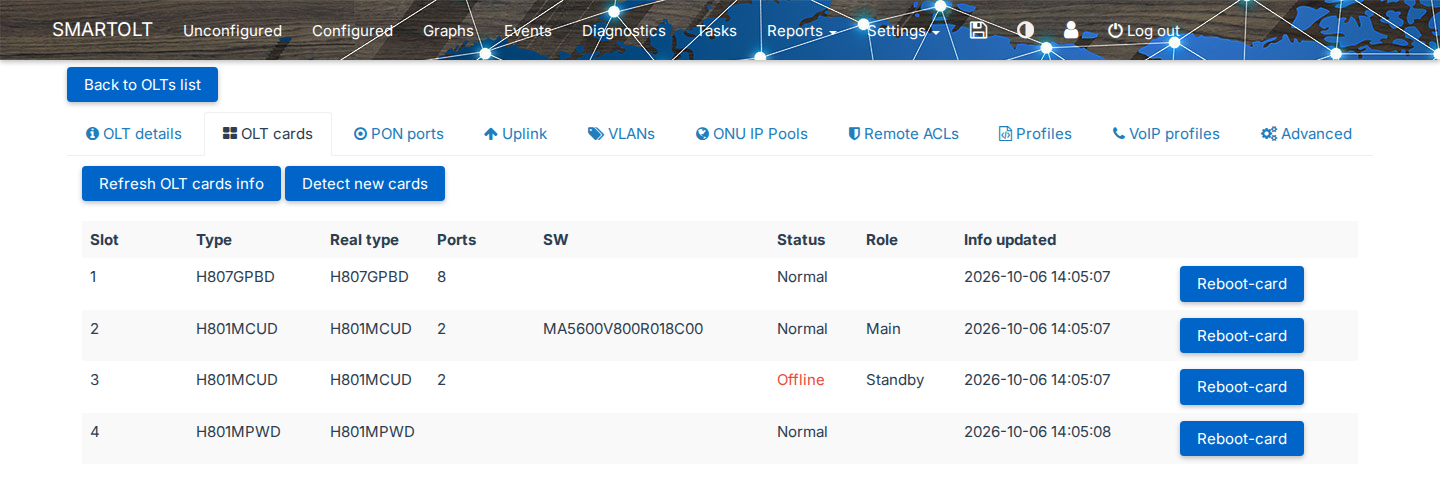
| Column | Meaning |
|---|---|
| Slot | The slot number of the board. |
| Type, Real type | The board type that is configured on the OLT, and the board type that is installed. |
| Ports | The number of PON or uplink ports on the board. |
| SW | The software version of the control board. |
| Status | Normal when the board works, or Offline in red when the board does not answer. |
| Role | Main or Standby, for control boards. |
| Info updated | When SmartOLT last read the board. |
Click Refresh OLT cards info to read the boards again. After you install a new board, click Detect new cards.
SmartOLT reads the OLT software version again each time it reads the boards. So if the version on the OLT details tab is old, open the OLT cards tab.
Reboot-card reboots the board, and all ONUs on a PON board lose the service until the board starts again.
6Check the PON ports
Open the PON ports tab. Select a slot in OLT slot, or keep Any to see all PON boards.
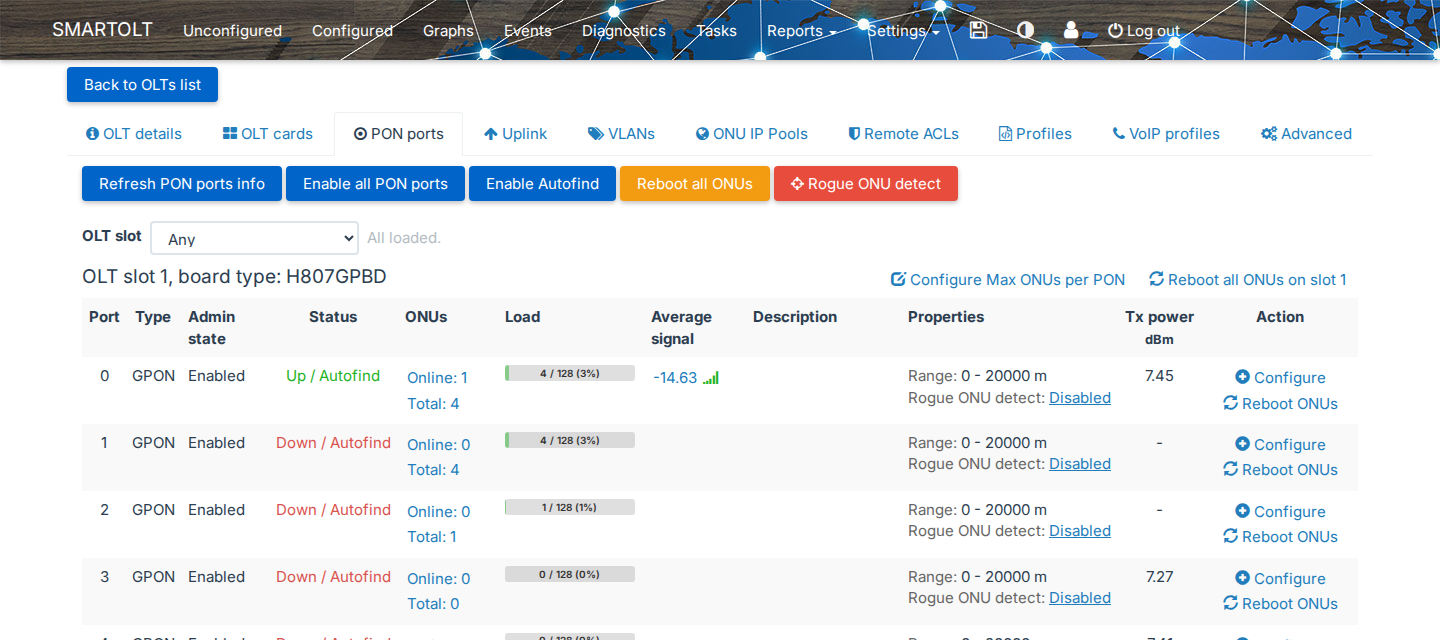
| Column | Meaning |
|---|---|
| Admin state | Enabled or Disabled on the OLT. |
| Status | Up or Down on the OLT. Autofind means that the port detects new ONUs. |
| ONUs | The online ONUs and the total ONUs. Click a number to open the ONU list. |
| Load | The authorized ONUs out of the maximum for the port. |
| Average signal | The average Rx signal of the online ONUs, in dBm. |
| Properties | The Range of the port and the state of Rogue ONU detect. |
| Tx power | The optical output of the PON port, in dBm. |
To change the port description, the admin state or the range, click Configure on the row.
When you change the range, the ONUs on the port disconnect for a short time. Reboot ONUs, Reboot all ONUs on slot ... and Reboot all ONUs reboot every ONU in that scope.
7Check the uplink ports
Open the Uplink tab. It lists the Ethernet ports that connect the OLT to your network.
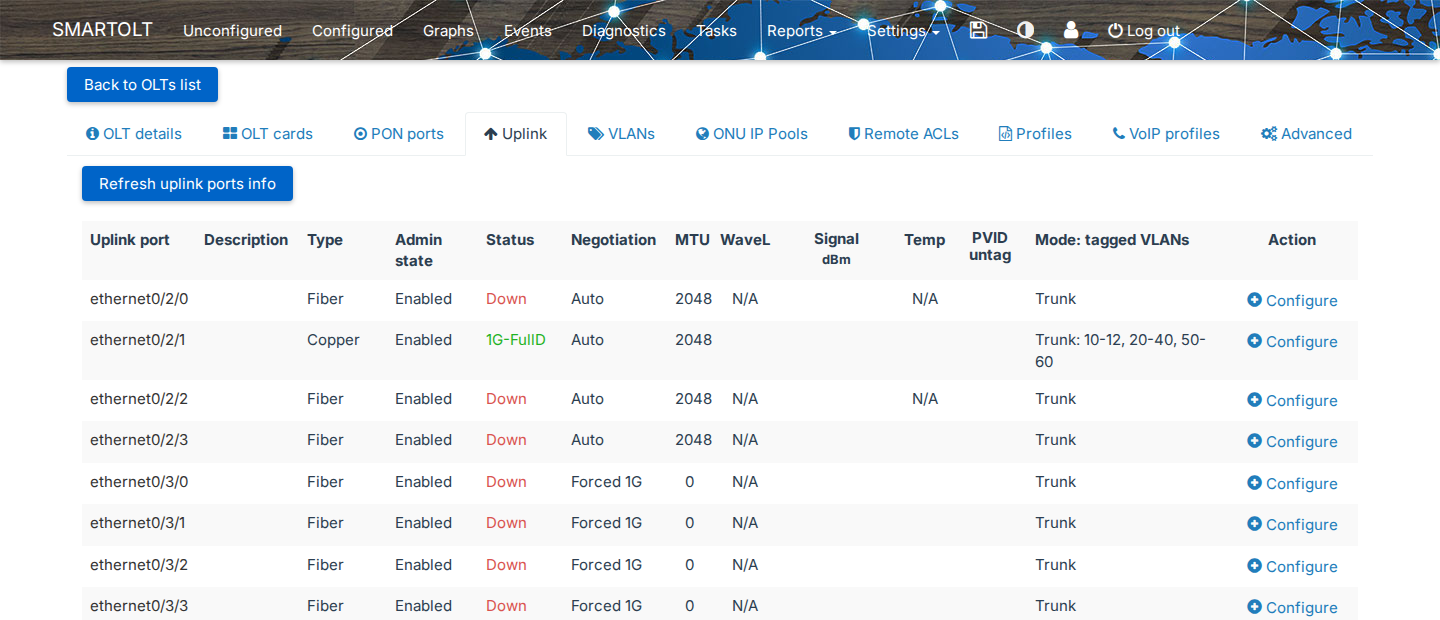
Status shows the link speed, for example 1G-FullD, or Down, and Mode: tagged VLANs shows the VLANs that the port carries. To set the description, the mode and the VLANs of the port, click Configure.
SmartOLT does not add new VLANs to the uplink ports. So after you add a VLAN, tag it here on the port that goes to your router. See OLT VLANs and IP pools.
8Check the configuration backups
Click Config backups on the OLT details tab.
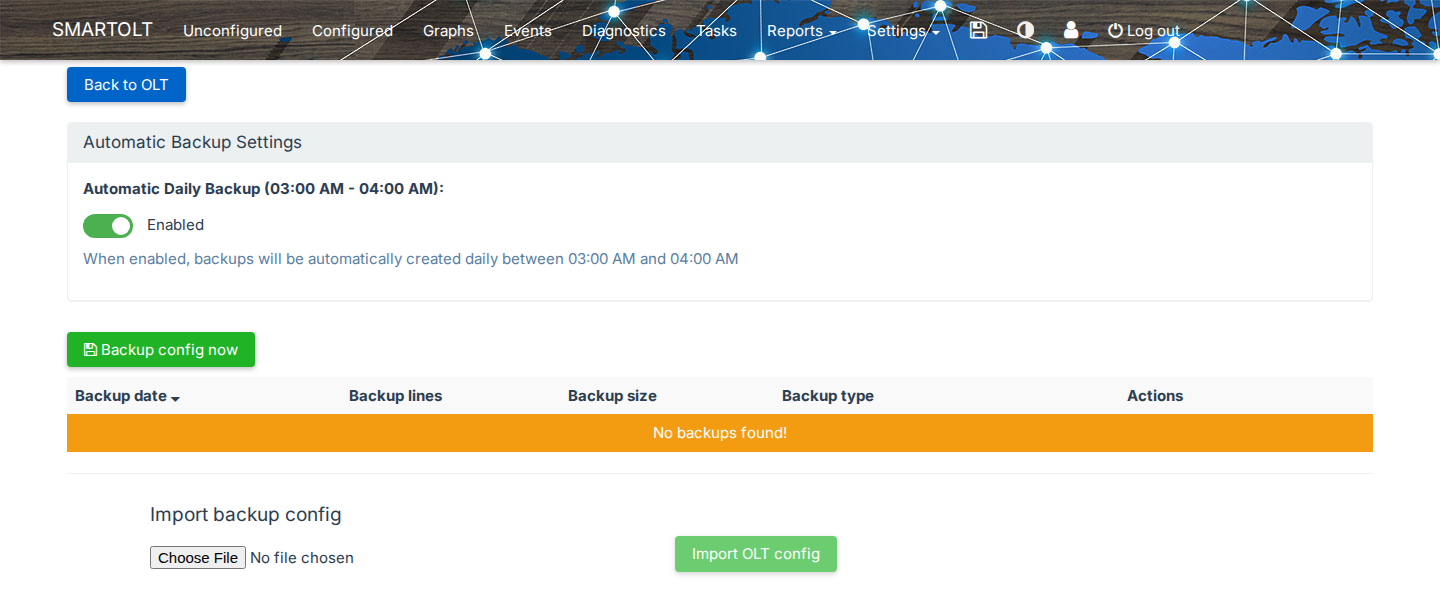
When Automatic Daily Backup (03:00 AM - 04:00 AM) is Enabled, SmartOLT saves the OLT configuration every night. To save a backup immediately, click Backup config now. The table shows each backup with its date, number of lines and size, and you can use Download to save a copy.
Restore backup uploads the backup to the OLT and reboots the OLT. The restore takes about 15 minutes, and all services are down during this time.
Other tabs
| Tab | Content |
|---|---|
| VLANs, ONU IP Pools | The VLANs and IP pools of the OLT. See OLT VLANs and IP pools. |
| Remote ACLs | The IP addresses that can reach the ONU management IPs when Allow remote access is on for an ONU. |
| Profiles | The custom profiles, line profiles and service profiles that SmartOLT uses on the OLT. |
| VoIP profiles | The SIP profiles for ONUs with VoIP. |
| Advanced | Options for the whole OLT, for example the signal warning and critical levels, DHCP Option 82, PPPoE-plus and the default tag-transform mode. |