
A zone groups ONUs by town, neighborhood or village. Zones only help you organize and find ONUs, so they do not change any ONU setting on the OLT. This guide shows where zones appear, and how you add, edit, import and delete them.
1Where zones are used
Every ONU belongs to one zone, and splitters can also belong to a zone.
| Place | How it uses the zone |
|---|---|
| Authorization form | Zone is a required field, and the Splitter list shows only the splitters of the selected zone. See Authorize an ONU. |
| ONU page | Zone shows the zone of the ONU. To change it, click it and use Update location details. See Manage an authorized ONU. |
| Configured | The Zone filter shows only the ONUs of one zone. |
| Splitters | Each splitter has a Zone field, and the splitter list has a Zone filter. See Splitters. |
| Batch actions | Change ONUs Zone moves many ONUs to another zone at the same time. See Batch actions. |
| Restriction groups | Allowed zones limits a user to the ONUs of some zones. See Users, roles, restriction groups and API keys. |
| Authorization presets | A preset can set the zone, and the name pattern can use {zone}. See Authorization presets and auto-authorization. |
| Graphs, Diagnostics | Both pages have a Zone filter. |
When you authorize an ONU, SmartOLT selects the zone for you if a zone has the same name as the PON port description. So if you give your PON ports descriptions that match your zone names, you save a step at each authorization.
2Open the zone list
Go to Settings → Zones.
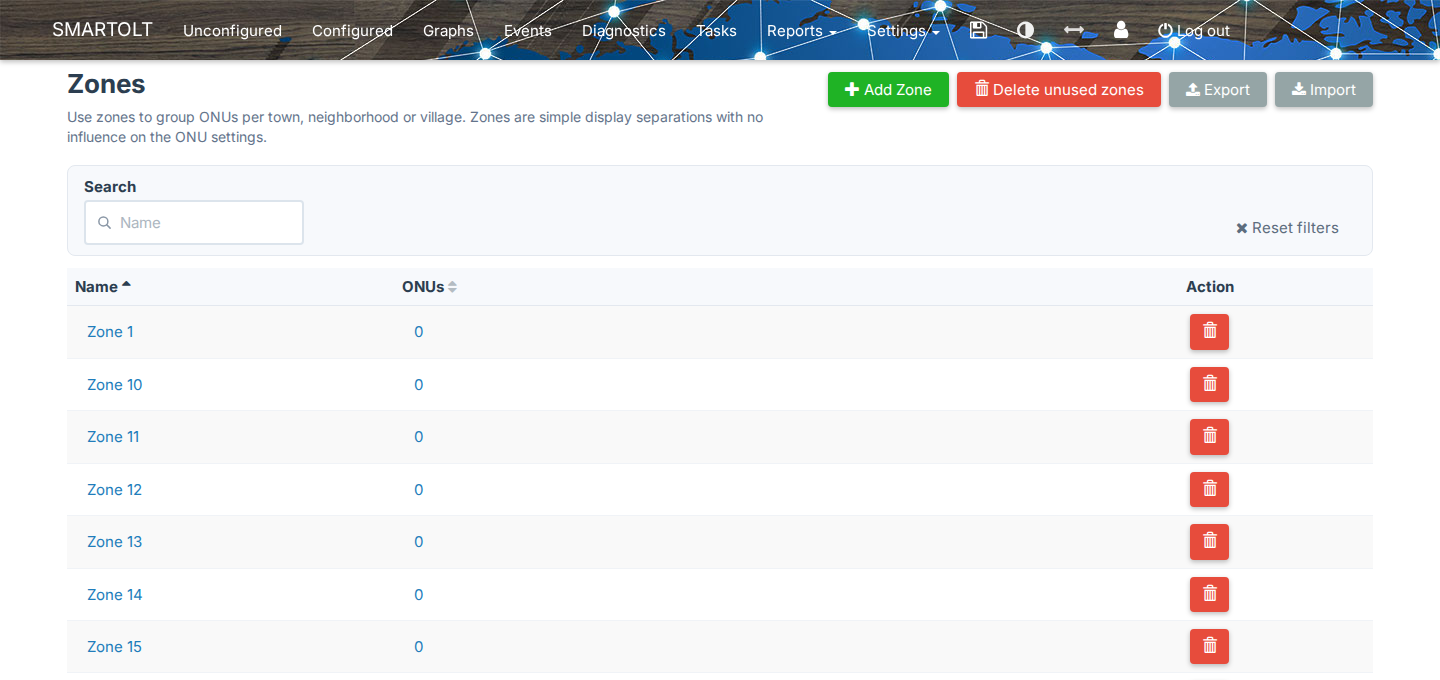
The list shows every zone that you have access to.
| Column | What it shows |
|---|---|
| Name | The name of the zone. Click it to edit the zone. |
| ONUs | The number of ONUs in the zone. Click the number to open Configured filtered by this zone. |
| Action | The delete button. |
To find a zone by name, type in Search, and to clear the search, click Reset filters. You can also click a column header to sort by Name or by ONUs.
To see Add Zone, the delete buttons and Import, you need the right to manage zones. To see Export, you need the right to export reports.
3Add a zone
- Click Add Zone.
- Type the name in Zone.
- Click Save.
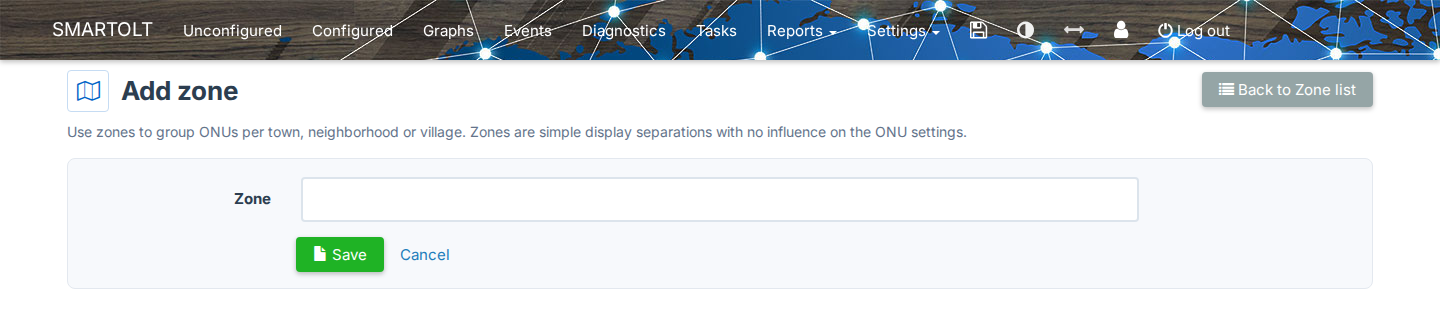
The name must be unique, and it can contain only letters, digits, spaces, underscore (_), dot (.) and dash (-).
If your SmartOLT user is in a restriction group with Allowed zones, SmartOLT adds the new zone to that group. A message with a link to the restriction group confirms this.
4Edit a zone
- Click the name of the zone in the list.
- Change the name in Zone.
- Click Save.
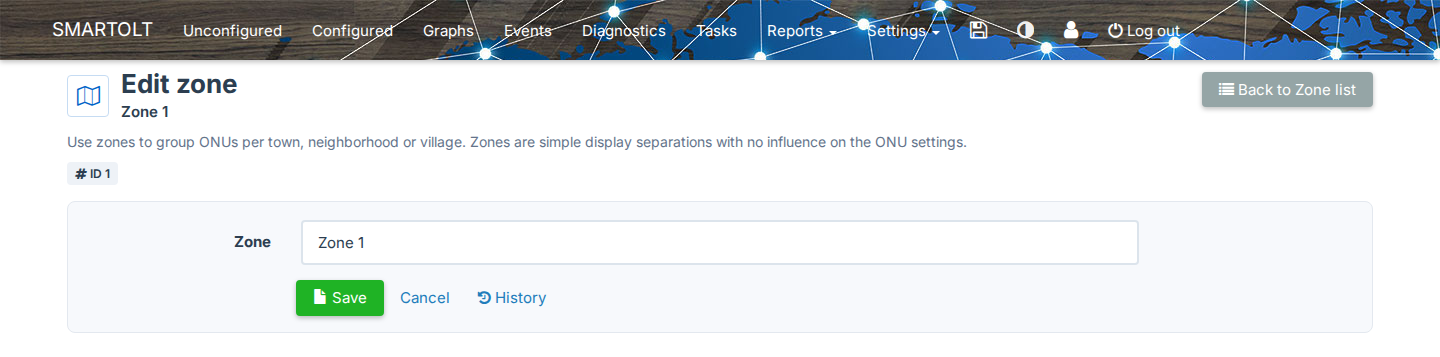
The same name rules apply as for a new zone. You can also change only the case of the letters, for example north to North.
When you rename a zone, the ONUs and splitters stay in the zone and show the new name everywhere.
To see when the zone was added, renamed or deleted, click History.
5Delete a zone
- Click the delete button on the row of the zone.
- Check the details on the Delete Zone page.
- Click Delete.
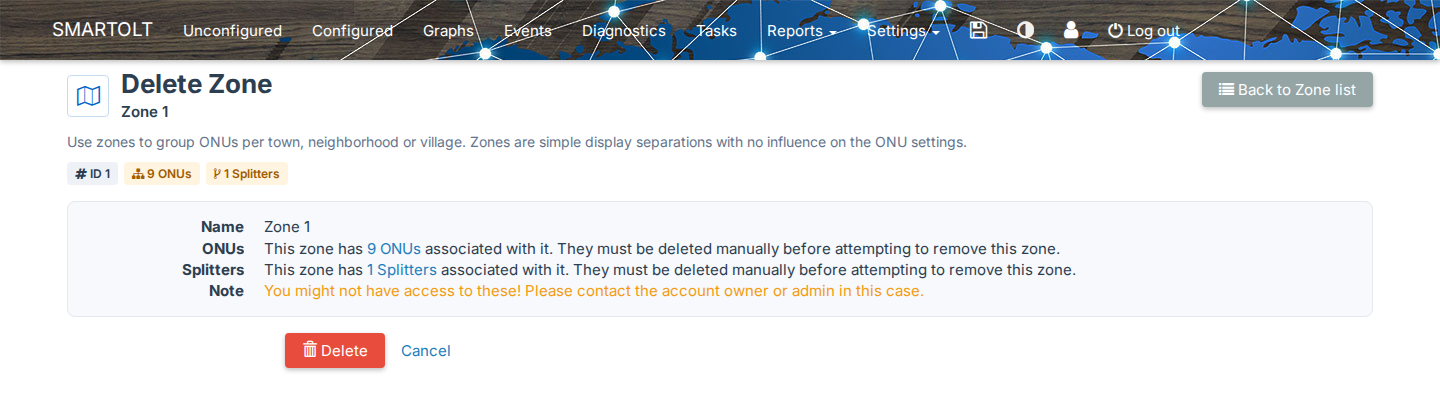
SmartOLT does not delete a zone that is still in use. In this case, the Delete Zone page tells you what blocks the delete:
| Blocker | What to do |
|---|---|
| ONUs | Click the link to see the ONUs, then move them to another zone or delete them. |
| Splitters | Click the link to see the splitters, then delete them. |
| Restriction groups | The zone is the only zone of one or more restriction groups, so change those groups first. |
To move all ONUs out of a zone, open the ONU list from the ONUs column. Then use Change ONUs Zone in Batch actions.
If a restriction group limits your access, you might not see all the ONUs or splitters that block the delete. In this case, ask the account owner or an administrator to delete the zone.
Delete unused zones
Delete unused zones removes every zone that is not in use, in one step. The button appears only when there are unused zones.
- Click Delete unused zones.
- Check the list of zones in the confirmation window.
- Click Delete.
A zone is unused when it has no ONUs and no splitters, and it is not the only zone of a restriction group.
6Change the zone of ONUs in batch
- Open Configured and select the ONUs.
- Open Change ONUs Zone in the batch actions.
- Select the new Zone.
- In Splitter, select what happens to the splitter of each ONU.
- Click Apply.
| Splitter option | What it does |
|---|---|
| Copy Splitter to new zone | SmartOLT looks for a splitter with the same name in the new zone. If there is no such splitter, SmartOLT creates one with the same name, number of ports and coordinates. |
| None | SmartOLT removes the splitter from the ONU. |
| A splitter name | SmartOLT assigns this splitter of the new zone to the ONU. |
If the splitter port of the ONU is free on the new splitter, SmartOLT keeps it; if not, SmartOLT assigns the next free port. SmartOLT skips an ONU that is already in the selected zone.
7Import and export zones
Export
Click Export on the zone list, and SmartOLT downloads a CSV file with the names of the zones. If you typed a search, the file contains only the zones that match it.
Import from CSV
- Click Import.
- If you need a template, click the template link to download
Zones_template.csv. - Select your file in Zones file.
- Click Import zones.
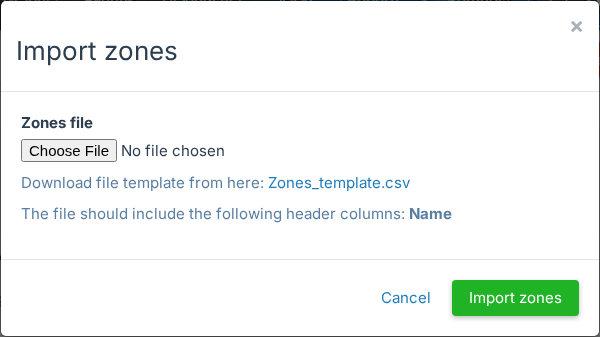
The file needs a Name column, and SmartOLT creates a zone for each new name in it. SmartOLT skips empty rows and names that already exist. If a name has characters that are not allowed, SmartOLT does not create the zone and shows the name in a list.