
Before an ONU can carry customer traffic, it must be authorized on the OLT. SmartOLT shows every ONU that the OLT detects but has not authorized yet, so you can authorize it from SmartOLT, and SmartOLT sends the configuration to the OLT for you.
This guide shows manual authorization, one ONU at a time.
1Find the ONU
Go to Unconfigured in the top menu.
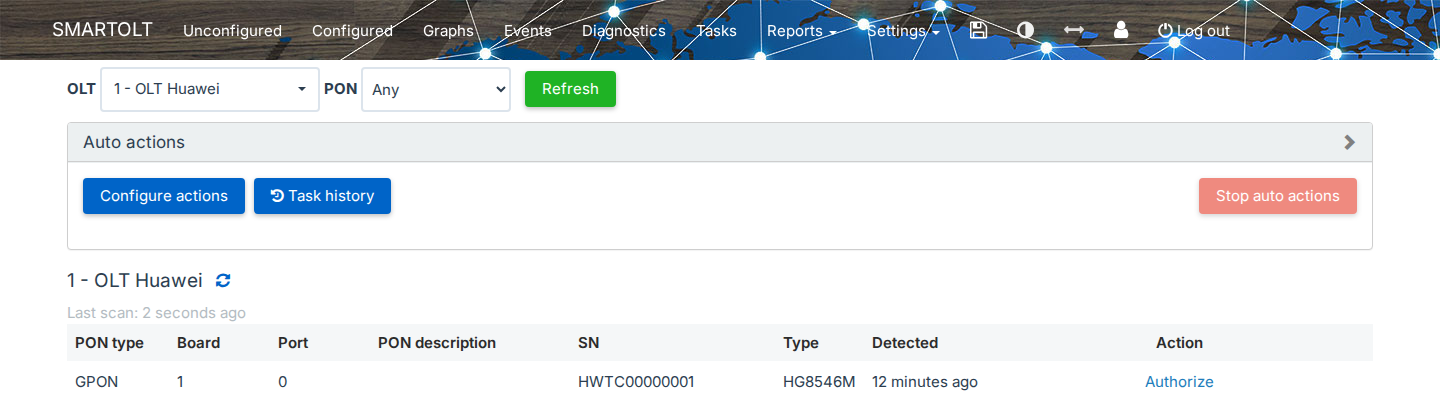
- Select the OLT. If you want to see only one PON port, select it in PON.
- Click Refresh to scan the OLT again. Last scan shows when SmartOLT last read the OLT.
- Find the ONU by its SN. The table also shows the board, the port, the ONU type that the OLT reports, and the time when the OLT detected the ONU.
- On the row of the ONU, click Authorize.
If the ONU is not in the list, check that it is connected and powered on, then click Refresh. If you want to prepare the ONU before it is connected, use Add ONU for later authorization.
2Fill in the authorization form
SmartOLT fills in the OLT, the PON type, the board, the port and the SN from the ONU that you selected. The example below authorizes a Huawei HG8546M in Routing mode on VLAN 22.
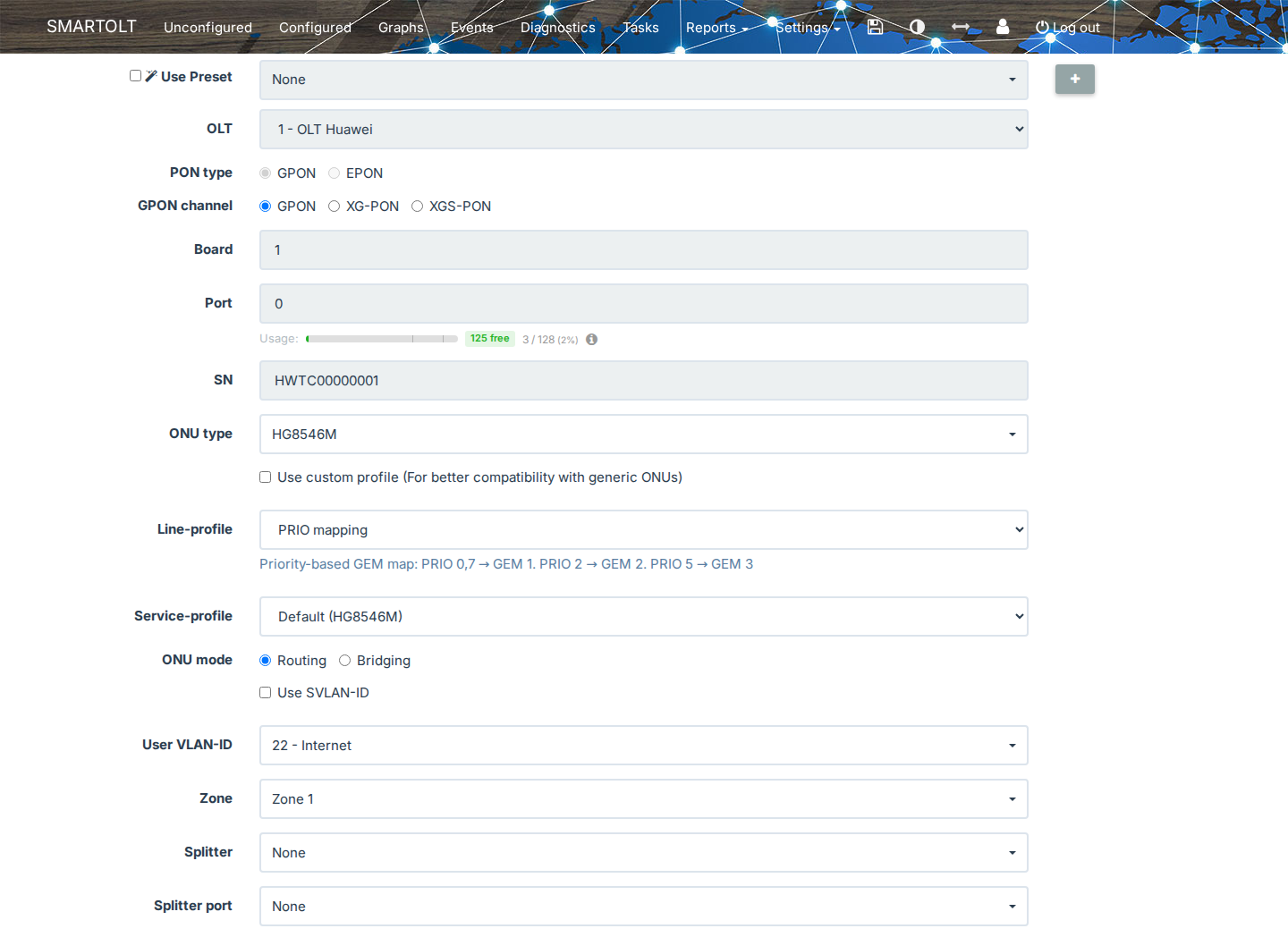
| Field | What to set |
|---|---|
| Use Preset | Leave it empty for manual authorization. If you select a preset, it fills in the form for you. |
| Port → Usage | Shows how many ONU positions the PON port uses and how many are free. |
| ONU type | SmartOLT selects the type that the OLT reports. Change it only if the ONU uses a different type. |
| Use custom profile | Select it for generic ONUs that do not work well with the default profile. |
| Line-profile | This field appears only on Huawei OLTs that have this option turned on, and only when you do not use a custom profile. PRIO mapping maps the traffic to GEM ports by priority. VLAN mapping maps the traffic by VLAN, so the internet VLANs, the management and VoIP VLANs, and IPTV each get their own GEM port. VLAN mapping supports several VLANs and TR-069. |
| Service-profile | The profile that the OLT applies to the ONU. Default uses the profile of the ONU type. |
| ONU mode | With Routing, the ONU works as a router. With Bridging, the ONU passes the traffic to the customer router. |
| Use SVLAN-ID | Select it only if your network uses QinQ, which means it adds an outer VLAN (SVLAN) around the customer VLAN. |
| User VLAN-ID | The VLAN that carries the customer traffic. |
| Zone, Splitter, Splitter port | Where the ONU is in your network. These fields help you find the ONU later. |
Some fields depend on the OLT vendor. For example, Line-profile appears only for some Huawei OLTs, and the options under Use custom profile are different on ZTE and on Huawei.
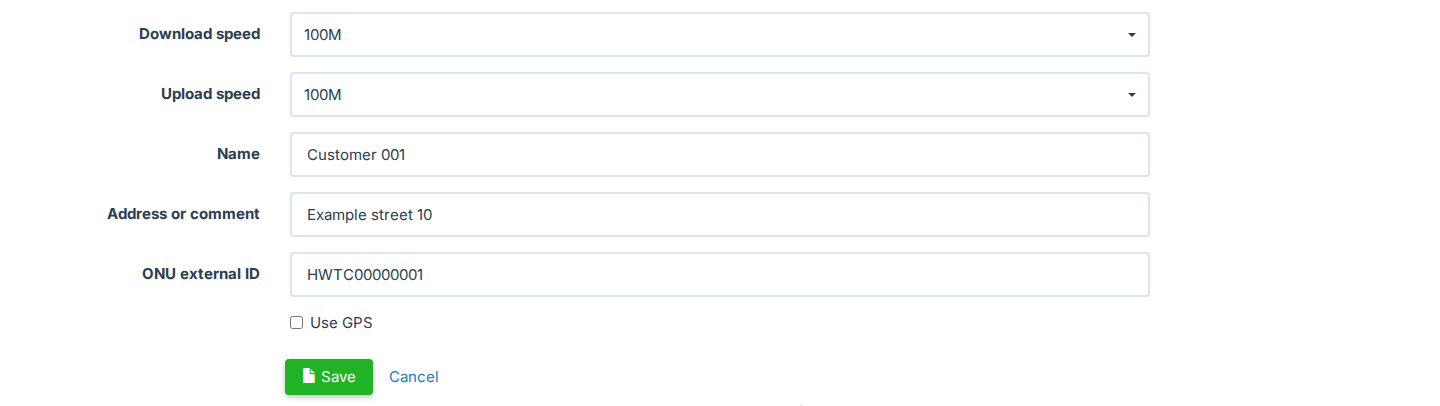
| Field | What to set |
|---|---|
| Download speed, Upload speed | The speed profiles for the customer. |
| Name | A name that identifies the customer or the location. |
| Address or comment | Optional. |
| ONU external ID | The ID that your billing system or your API integration uses for this ONU. SmartOLT fills in the SN, but you can change it. |
| Use GPS | Optional. Saves the location of the ONU, so you can see it on the map. |
Click Save, and SmartOLT sends the configuration to the OLT.
3Check the ONU
After you click Save, SmartOLT opens the page of the ONU.
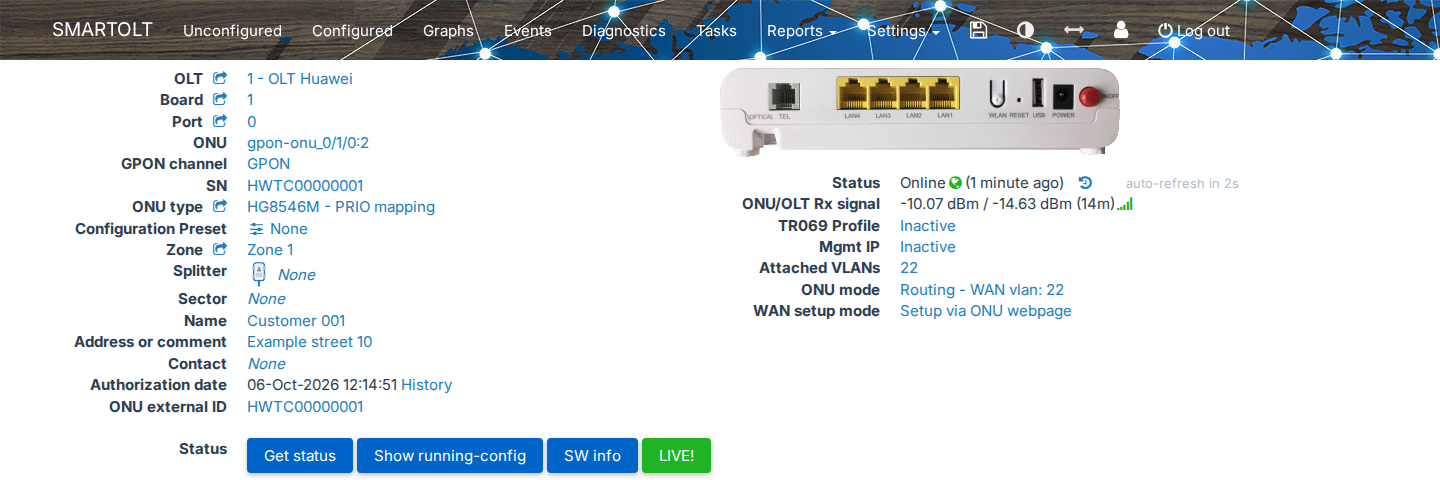
Check these values:
- Status shows Online.
- ONU/OLT Rx signal shows the optical power in both directions.
- ONU mode and Attached VLANs match what you selected in the form.
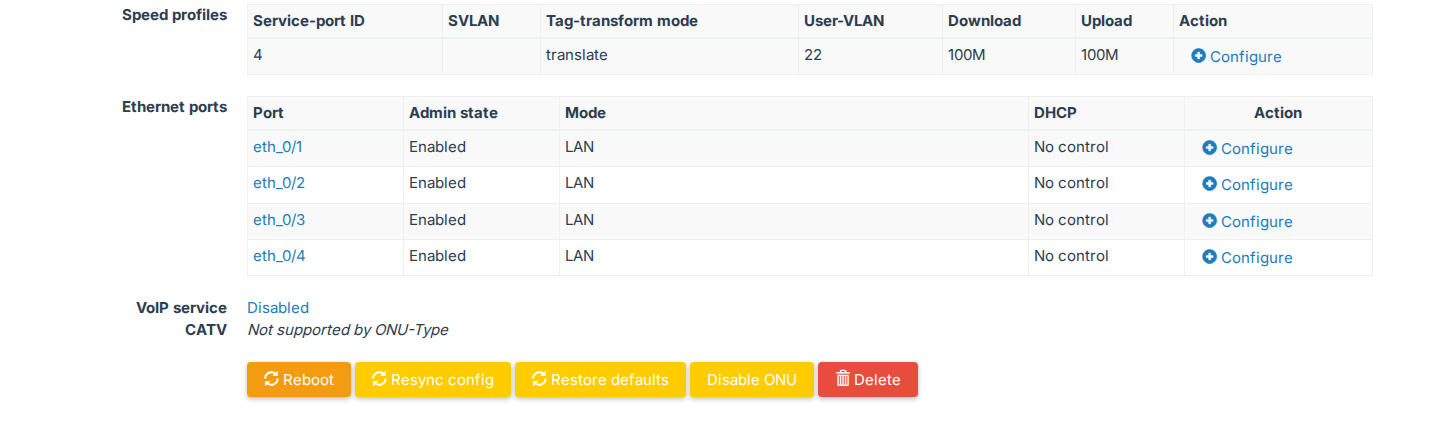
The lower part of the page shows the speed profile, the VLAN and the Ethernet ports of the ONU. If you need to change these settings later, use Configure.
Delete removes the ONU from the OLT, and the customer loses the service until you authorize the ONU again.