
After you authorize an ONU, you manage it from its ONU page. This guide shows how to find an ONU, read its page, change its settings and use the action buttons. It also shows how to move an ONU to another PON port or OLT.
1Find the ONU
Go to Configured in the top menu. The page Configured ONUs lists every authorized ONU.
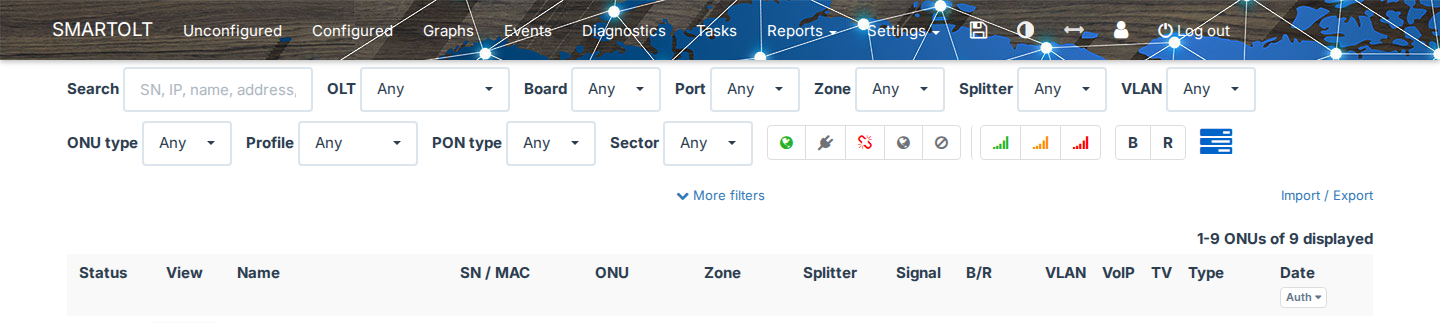
- Type in the search field. You can search by SN, IP address, name, address, phone number or PPPoE username, and a partial value also works. For IP addresses, you can also type a CIDR subnet or an IP range.
- Use the filters to make the list shorter, for example by OLT, Board, Port, Zone, Status or Signal. To see all the filters, click More filters.
- Click View on the row of the ONU, and SmartOLT opens the ONU page.
On the ONU page, the icon next to OLT, Board, Port and Zone opens the Configured list, filtered by that value. For example, you can use it to see the other ONUs on the same PON port.
2Read the ONU page
The upper part of the ONU page shows where the ONU is and how it works.
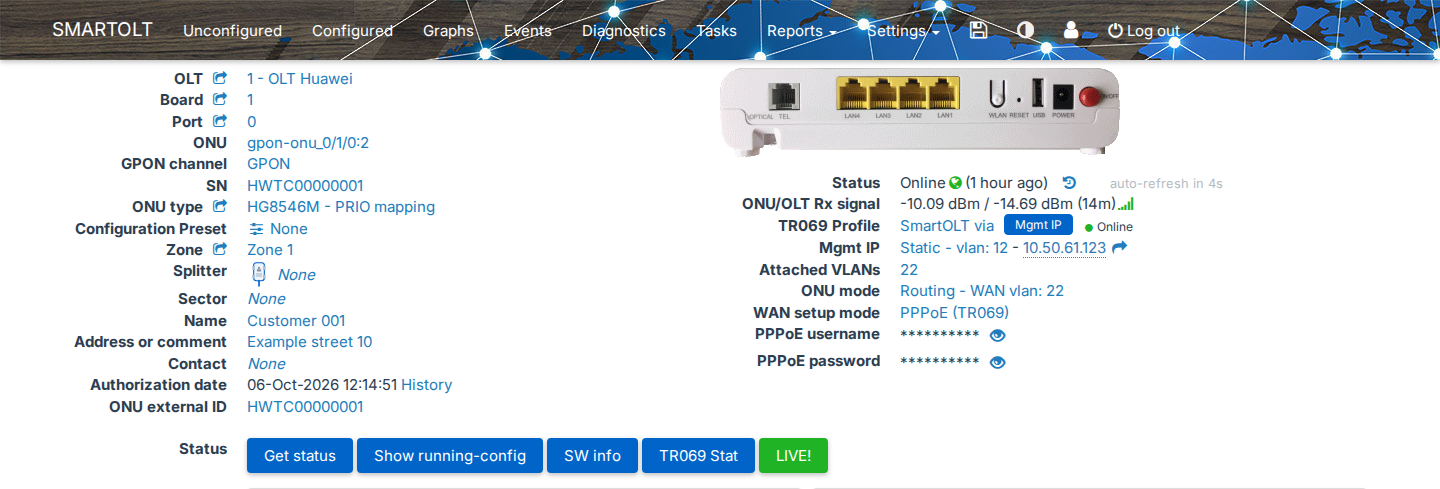
| Field | What it shows |
|---|---|
| OLT, Board, Port, ONU | The position of the ONU on the OLT. |
| SN (MAC for EPON) | The serial number of the ONU. |
| Zone, Splitter, Name, Address or comment, Contact | The location details. To change a value, click it. |
| Authorization date | The date when you authorized the ONU. History lists every change made to the ONU. |
| Status | The last known status, for example Online, Offline, Power Fail or Loss of Signal. The page refreshes it automatically, and the history icon opens the status history. |
| ONU/OLT Rx signal | The optical power that the ONU and the OLT receive, in dBm. |
| Attached VLANs | All VLANs that the ONU can use. |
| ONU mode | Routing with the WAN VLAN, or Bridging with the main VLAN. |
| WAN setup mode | For Routing only: how the ONU gets its internet connection. |
Below these fields, you find the Status buttons, the Traffic/Signal graphs, the Speed profiles and the Ethernet ports.
Read live data from the OLT
These buttons ask the OLT for current data. They only read data, so you can use them at any time without changing anything.
| Button | What it does |
|---|---|
| Get status | Reads the current state of the ONU from the OLT. |
| Show running-config | Shows the configuration that the OLT has for this ONU. This button is not available on every installation. |
| SW info | Shows the hardware and software version of the ONU. |
| TR069 Stat | Shows the TR-069 data of the ONU. You see this button only when TR-069 is active on the ONU. |
| LIVE! | Shows a live traffic graph of the ONU. |
3Change the speed
The Speed profiles section shows the Download and Upload speed of the ONU. Unlimited means that the ONU has no speed profile.
- Click Configure in the Speed profiles section.
- In Configure speed profiles, select the Download speed and the Upload speed.
- Click Save, and SmartOLT sends the new speed to the OLT.
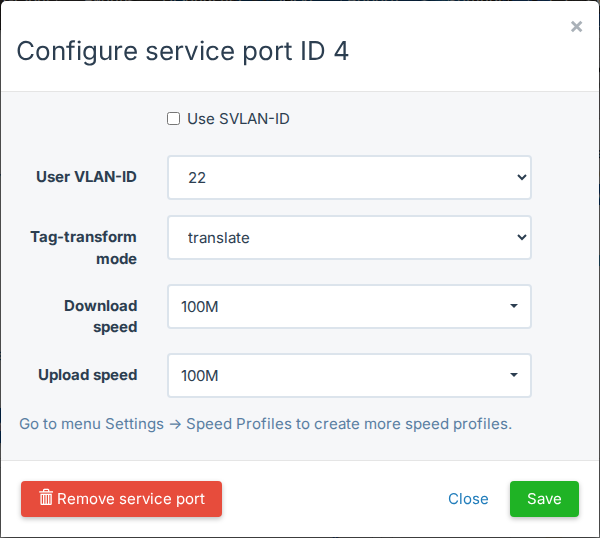
The lists show only the speed profiles that exist in SmartOLT. If you need more profiles, create them in Settings → Speed profiles.
On some OLTs, the section shows one row for each service port, with its VLAN. In this case, click Configure on the row that you want to change. On Huawei OLTs, Configure opens Configure service port ID N, which also shows the User VLAN-ID and the Tag-transform mode of the service port.
4Change the VLAN or the ONU mode
Attached VLANs
Attached VLANs is the list of all VLANs that the ONU can use.
- Click the value of Attached VLANs.
- In Update attached VLANs, select every VLAN that the ONU needs.
- Click Update.
After you change this list, assign the VLANs to the Ethernet ports, because the ports do not use the new VLANs automatically. See Configure the Ethernet ports.
ONU mode and WAN VLAN
- Click the value of ONU mode.
- In Update ONU mode, set the fields below.
- Click Update, and SmartOLT sends the change to the OLT.
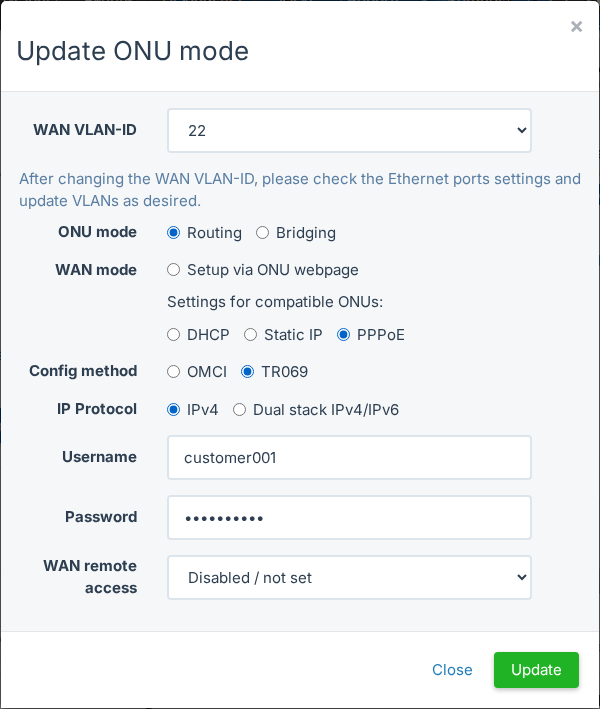
| Field | What to set |
|---|---|
| ONU mode | Routing: the ONU works as a router. Bridging: the ONU passes the traffic to the router of the customer. |
| WAN VLAN-ID (VLAN-ID in Bridging) | The VLAN that carries the traffic of the customer. |
| WAN mode | For Routing only. With Setup via ONU webpage, SmartOLT does not configure the WAN, so you set it on the web page of the ONU. With DHCP, Static IP and PPPoE, SmartOLT configures the WAN. These options are available only for ONU types that support them. |
| Config method | For Routing only. OMCI or TR069. You can select TR069 only when the ONU has a TR-069 profile. |
| IP Protocol | For Routing only. IPv4 or Dual stack IPv4/IPv6. |
After you change the WAN VLAN-ID, check the Ethernet ports and update their VLANs. If a port still uses the old VLAN, it does not carry traffic on the new one.
5Configure the Ethernet ports
The Ethernet ports section lists each port of the ONU with its Admin state, Mode and DHCP setting.
- Click Configure on the row of the port.
- In Configure ethernet port, set the fields below.
- Click Save.
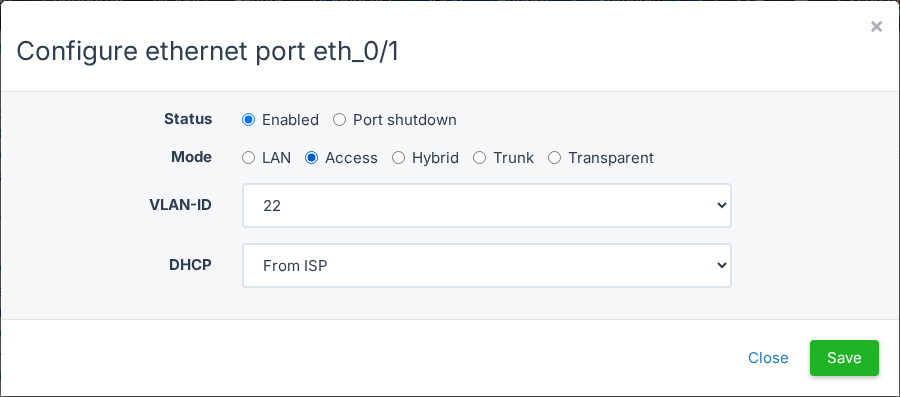
| Field | What to set |
|---|---|
| Status | Enabled, or Port shutdown if you want to turn the port off. |
| Mode | LAN: the port is part of the router of the ONU. Available only in Routing mode. |
| Access: the port carries one VLAN, untagged. | |
| Hybrid: the port carries one untagged VLAN and also tagged VLANs. | |
| Trunk: the port carries tagged VLANs only. | |
| Transparent: the port passes all traffic. | |
| IPTV: the port carries the IPTV VLAN. Available only when IPTV is active on the ONU. | |
| VLAN-ID | The VLAN of the port, for Access and Hybrid. |
| Allowed VLANs list | The tagged VLANs, for Hybrid and Trunk. |
| DHCP | No control, From ISP, From ONU or Forbidden. EPON ONUs use No control only. |
The VLAN lists show only the VLANs from Attached VLANs, so if a VLAN is missing, add it there first.
6Use the action buttons
The action buttons are at the bottom of the ONU page. Each button asks you to confirm before SmartOLT sends the command.

| Button | What it does | Effect on the customer |
|---|---|---|
| Reboot | Restarts the ONU. | The service stops until the ONU is online again. If the ONU is already offline, SmartOLT does not send the command. |
| Resync config | Deletes the configuration of the ONU on the OLT and builds it again from the SmartOLT database. This takes about 30 seconds. | The service stops while SmartOLT builds the configuration again, and the ONU can also restart. |
| Restore defaults | Resets the ONU to factory defaults. After the reset, the ONU applies the settings that you configured in SmartOLT. | The customer loses all settings made on the ONU, including the WiFi name, the WiFi password and the port forwards. |
| Disable ONU | Shuts down all services of the ONU on the OLT, and the button changes to Enable ONU. | The service stops. If CATV is active, SmartOLT also turns it off. |
| Enable ONU | Turns on again the services of a disabled ONU. | The service comes back. If CATV was active before Disable ONU, SmartOLT turns it on again. |
| Delete | Removes the ONU from the OLT and from SmartOLT, and then opens Unconfigured. | The service stops until you authorize the ONU again. |
Use Resync config when the configuration on the OLT does not match the ONU page, for example after someone changes the ONU directly on the OLT.
You see only the buttons that your user account has rights for. While a move or a Resync config runs, the page hides the buttons and shows a message, and the buttons come back when the operation ends.
7Move an ONU to another PON port or OLT
From the ONU page
Use this method when you move the ONU to another PON port, board or OLT.
- On the ONU page, click the value of OLT, Board or Port.
- In Move ONU, select the new OLT, Board and Port.
- If the new PON port has a different default VLAN, SmartOLT asks if you want to use it. If you want to use it, select Change main VLAN-ID to default VLAN-ID.
- Click Move.
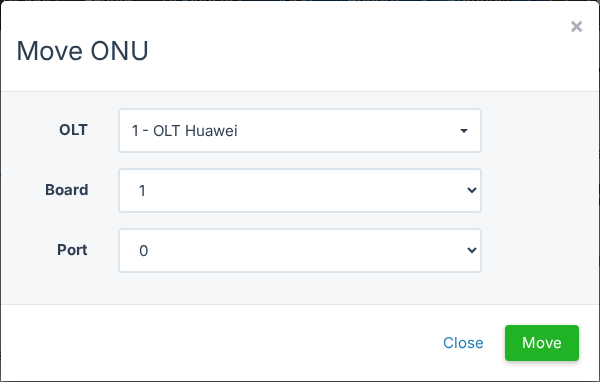
SmartOLT deletes the ONU from the old PON port and configures it on the new one, with a free ONU ID on the new port. The ONU keeps its settings.
SmartOLT does not move the fiber, so you must connect the ONU to the new PON port yourself. The ONU is online only after you connect it there.
If you want to change only the ONU ID on the same port, click the value of ONU. Then, in Change allocated ONU ID, select the new ID and click Apply.
From the Unconfigured list
Sometimes the OLT detects an ONU on a new port before you move it in SmartOLT. In that case, the ONU appears in Unconfigured, and SmartOLT recognizes its SN.
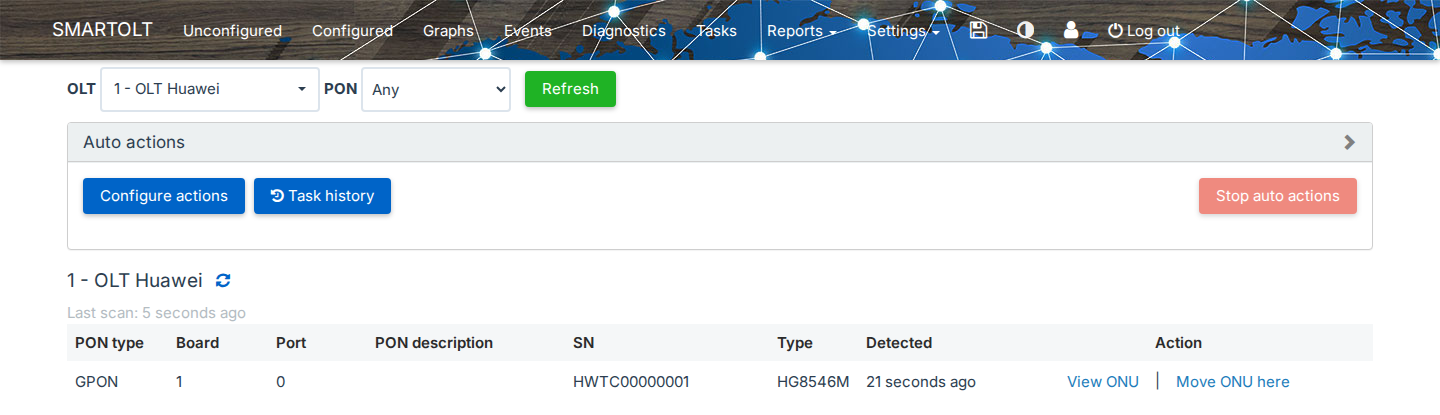
| Link on the row | When it appears | What it does |
|---|---|---|
| View ONU | The SN belongs to an ONU that SmartOLT knows. | Opens the ONU page. |
| Move ONU here | The SN belongs to an ONU that is configured on another port or OLT. | Moves the ONU to the port where the OLT detects it now. |
| Resync config | The SN belongs to an ONU that is configured on this same port, but the OLT has no configuration for it. | Builds the configuration on the OLT again from SmartOLT. |
Auto actions
Auto actions runs Move and Resync for you during a time window. Use it when you move many ONUs, for example when you migrate a PON port or an OLT.
- Go to Unconfigured. In the Auto actions section, click Configure actions.
- Select the OLT.
- Select Move. SmartOLT also selects Resync.
- In Run actions for, select how long the actions run: 30 min, 4 hours, 8 hours or 12 hours.
- Click Start.
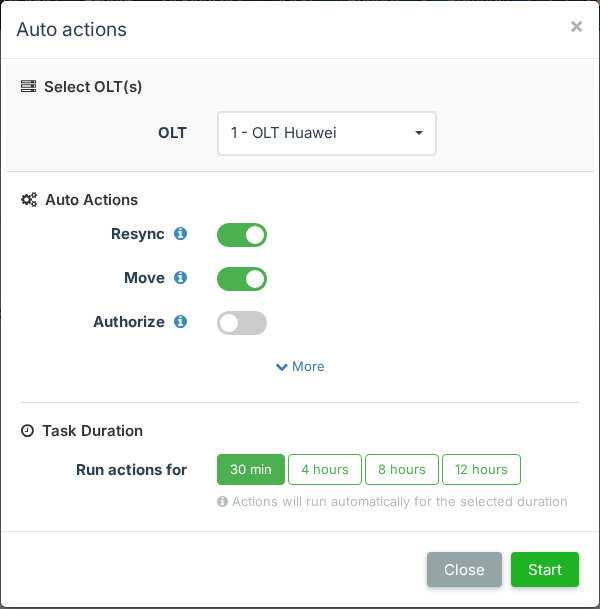
While the task runs, SmartOLT moves each known ONU that appears in Unconfigured. If you want to end the task early, select the rows of its actions in the Auto actions panel, click Stop auto actions and confirm. The button stays disabled until you select at least one row. For all options, see Auto actions: authorize, move and resync.
8Replace the ONU hardware
Use this when the customer gets a new ONU and keeps the same service.
- On the ONU page, click the SN value.
- In Replace ONU by SN, enter the SN of the new ONU. You can also click the search icon and select it from the ONUs that wait on this PON port.
- If the new ONU is a different model, select its ONU type.
- Click Replace.
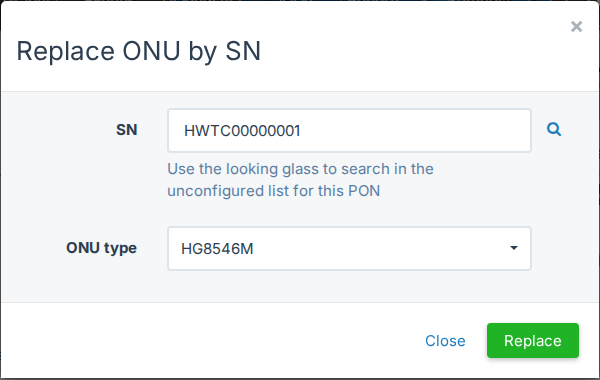
SmartOLT keeps all settings of the ONU and applies them to the new SN. If the SN already belongs to another ONU on the same OLT, SmartOLT refuses the change.